The JavaBean interface to the RBNB Simple API (SAPI) provides a persistent control which may be included in any container application to provide RBNB support. Most of the methods which are visible to the Java developer via the SAPI are also exported through the JavaBean interface. This document assumes familiarity with the SAPI.
Via the JavaBean to ActiveX bridge provided by Sun Microsystems, it is possible to use this JavaBean anywhere one might use an ActiveX control. Now any ActiveX container may be used as an RBNB client: Microsoft Word, Microsoft Access, DataViews, LabVIEW, MATLAB, etc. The interface for the ActiveX control is identical to the JavaBean interface in the method names and number of parameters, but the data types involved vary depending on the interface used. Please consult your container's documentation for specifics on how to include ActiveX components, and Sun's ActiveX bridge user guide and FAQ for more information.
All of the classes available in the Simple API can be created as JavaBeans or ActiveX objects. There are some differences in available methods, because the JavaBean brdige does not support method overloading. The following notes describe what those differences are.
JavaBeans and ActiveX objects always use the default constructor for an object. Each object has methods for specifying any constructor parameters (if any exist) after the object has been created.
The ChannelMap object stores channel names and their associated data for posting to or retrieval from a server. See the SAPI ChannelMap JavaDoc.
| Method | Difference from SAPI |
|---|---|
| PutData | The overloaded version which takes the byte order argument is not available. Local byte order is assumed. |
| toString | This method, and the other Object methods, are not exported. |
Although instances of the Client object cannot be created, it serves as the base class for the Sink, Source, and PlugIn objects. See the SAPI Client JavaDoc.
| Method | Difference from SAPI |
|---|---|
| OpenRBNBConnection | The versions of this method with zero and two parameters are not available. |
| CloseRBNBConnection | The version of this method with zero parameters is not available. |
| SetRingBuffer | This method exists to allow the cache size, archive mode, and archive size to be specified after the object has been created. |
In addition to the changes listed above to its base object, a few other methods have been affected. Note that since the constructor takes no parameters in the JavaBean/ActiveX world, the SetRingBuffer method should be used. See the SAPI Sink JavaDoc.
| Method | Difference from SAPI |
|---|---|
| Fetch | Only the version with two parameters has been exported. Since the JavaBean bridge to ActiveX does not allow objects to be returned, you must pass a valid ChannelMap object to this method, which will be filled with the result. |
| Request | Only the version with four parameters is available. |
In addition to the changes listed in Client, the Flush method is changed. Note that since the constructor takes no parameters in the JavaBean/ActiveX world, the SetRingBuffer method should be used. See the SAPI Sink JavaDoc.
| Method | Difference from SAPI |
|---|---|
| Flush | Only the version with two parameters has been exported. |
In addition to the changes listed for Client, above, a few other methods have been affected. See the SAPI Sink JavaDoc.
| Method | Difference from SAPI |
|---|---|
| SetRingBuffer | This method is unsupported for PlugIns, and therefore is not exported. |
| Fetch | Only the version with two parameters has been exported. Since the JavaBean bridge to ActiveX does not allow objects to be returned, you must pass a valid PlugInChannelMap object to this method, which will be filled with the result. |
| Flush | The version with one parameter is not available. |
Other than the changes to its base class, the ChannelMap class, the JavaBean/ActiveX interface for the PlugInChannelMap is identical to the SAPI interface. See the SAPI Sink JavaDoc.
Note that the JRE should be the PUBLIC jre, not the one hidden inside a JDK installation.
You should now be able to see the controls with any ActiveX control client or COM browser.
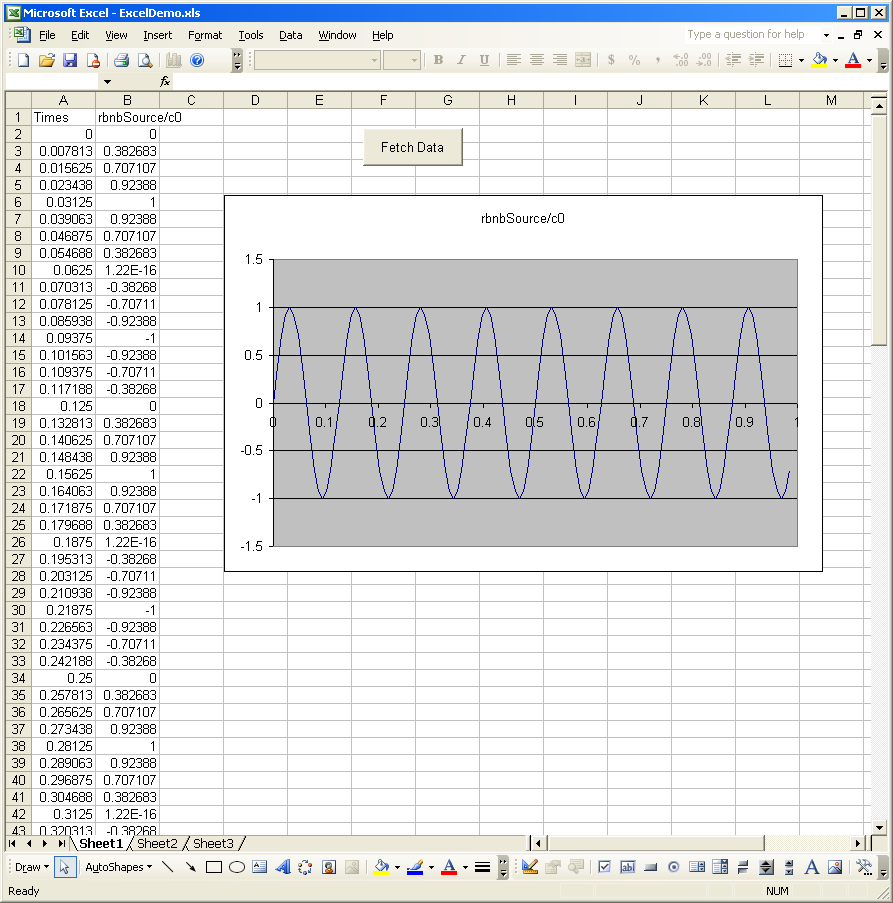
The first step is to create a button to perform the task. This is most easily done using the Control Toolbar. You can change the button text by right clicking and selecting "Properties", then changing the "Name" property. To associate code with the button, right click and select "View Code". This will open up Visual Basic for Applications™. The code below performs the task we seek to perform.
Private Sub FetchButton_Click()
    Dim index As Long, ii As Long
    Set Sink1 = CreateObject("Sink.Bean")
    Set ChannelMap1 = CreateObject("ChannelMap.Bean")
    Set ChannelMap2 = CreateObject("ChannelMap.Bean")

    Sink1.OpenRBNBConnection "localhost:3333", "ExcelDemo", "", ""
    Sheet1.Cells(1, 1) = "Times"
    Sheet1.Cells(1, 2) = "rbnbSource/c0"
    ChannelMap1.Clear
    ChannelMap1.Add ("rbnbSource/c0")
    Sink1.Request ChannelMap1, 0, 1, "newest"
    Sink1.Fetch -1, ChannelMap2
    If (ChannelMap2.NumberOfChannels > 0) Then
        times = ChannelMap2.GetTimes(0)
        result = ChannelMap2.GetDataAsFloat32(0)
        For ii = 1 To UBound(result)
            Sheet1.Cells(ii + 1, 1) = times(ii - 1) - times(0)
            Sheet1.Cells(ii + 1, 2) = result(ii - 1)
        Next ii
    Else
        MsgBox "No data."
    End If
    Sink1.CloseRBNBConnection

    ' Clean up objects:
    Set Sink1 = Nothing
    Set ChannelMap1 = Nothing
    Set ChannelMap2 = Nothing
End Sub