MBARI Remote Access: Virtual Private Network (VPN) Configuration for Microsoft Windows
Table of Contents
- Personal Firewalls, Routers, & VPN Configuration
- Step 1 - Open the Control Panel & Start the New Connection Wizard
- Step 2 - The New Connection Wizard
- Step 3 - Connect to MBARI's VPN Server
- Step 4 - Finding the Various Domain Resources
- Additional Info - Split Tunnel
- In Closing
Introduction
Please refer to the I.S. Frequently Asked Questions (FAQ's) for general information on VPN's at MBARI. This document will not discuss how to configure your ISP connection. It assumes that the connection to your ISP is working prior to your attempting to configure the L2TP and VPN components.
Personal Firewalls, Routers, & VPN Configuration
VPN's uses either the PPTP or the L2TP protocol. If you use a personal firewall or router on your home network, you must make sure that L2TP traffic can go through the firewall router. Please consult the vendor's documentation for your particular device or software. This MUST be done prior to configuring your computer or the connection will not succeed.
Step 1 - Open the Control Panel & Start the New Connection Wizard
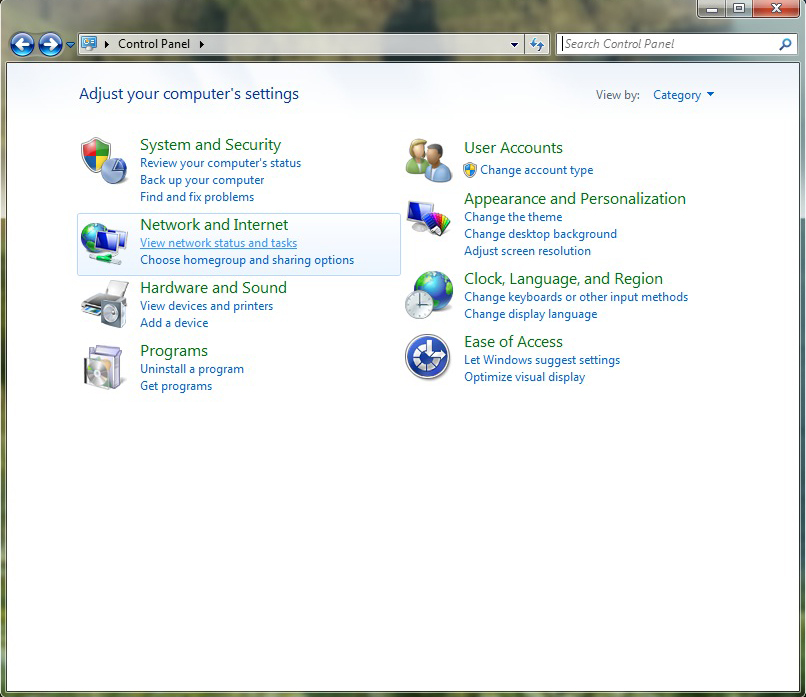
First, open your computer's control panel and click on View network status and tasks under Network and Internet. This will display the Network Connections window showing the computer's networking devices.
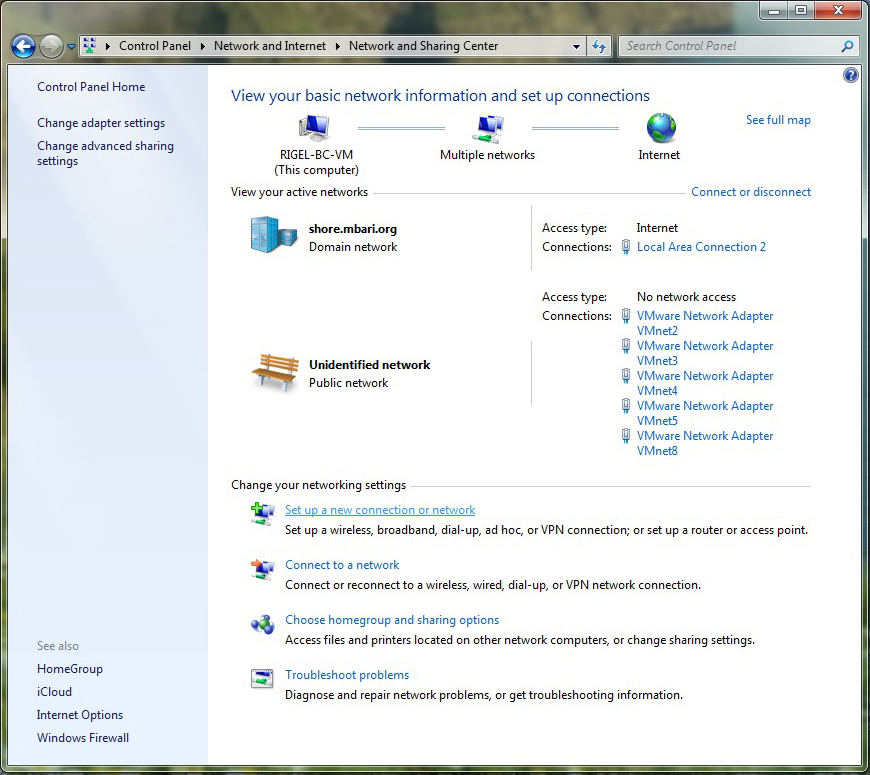
We want to create a new connection so click on Set up a new connection or network under Change your Network Settings at the bottom of the window.
Step 2 - The New Connection Wizard
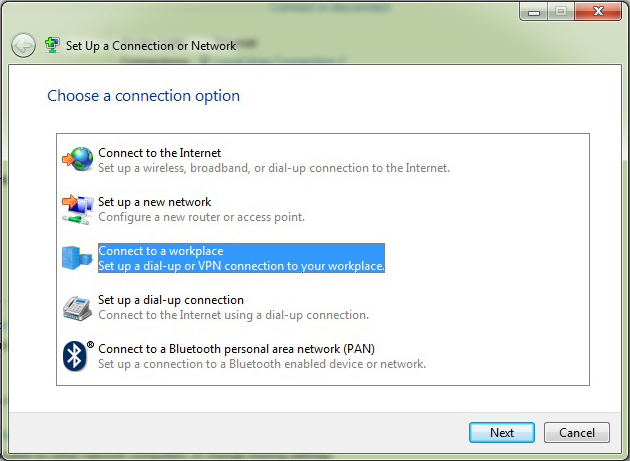
Select Connect to a workplace and click the Next button.
 .
.
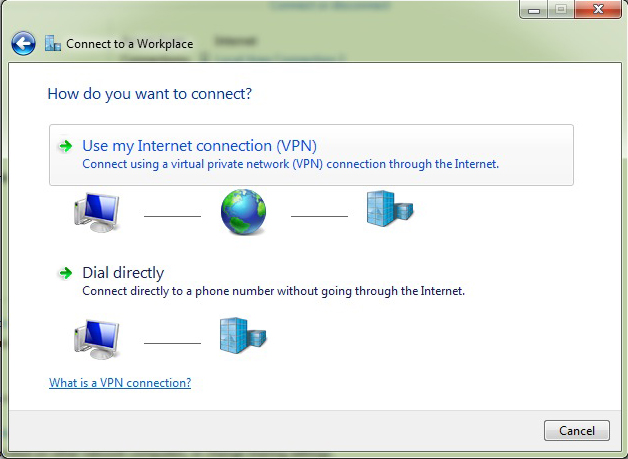
Select Use my Internet connection (VPN) and click the Next button.
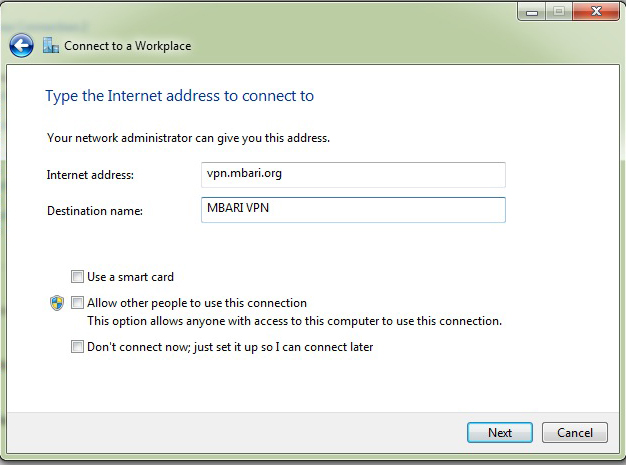
Enter vpn.mbari.org as the host name of the computer that you will be connecting to. Give the configuration some name that will help you remember what this configuration is for. Click the Next button.
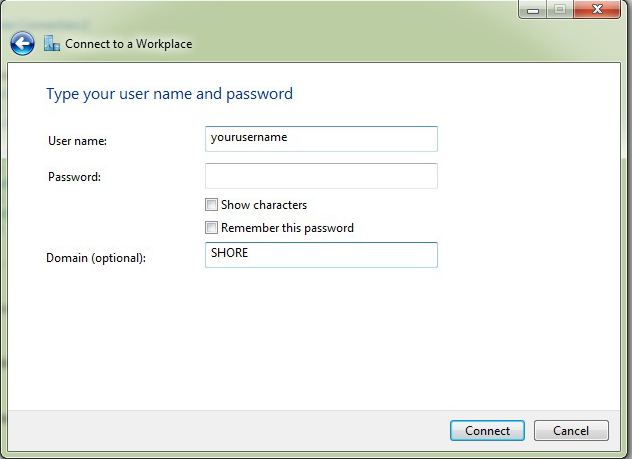
Enter Your Username and enter SHORE in the Domain field. If you don't have a Domain option, enter your username as shore\username. Click the Connect button. You may or may not get a connection at this point.
Click on Change adapter settings in the Network Control Panel (that should still be open) and right click on the VPN connection that you just setup. Select Properties.
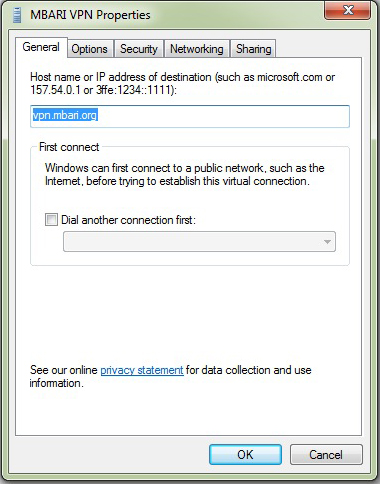
Click on the Security Tab.
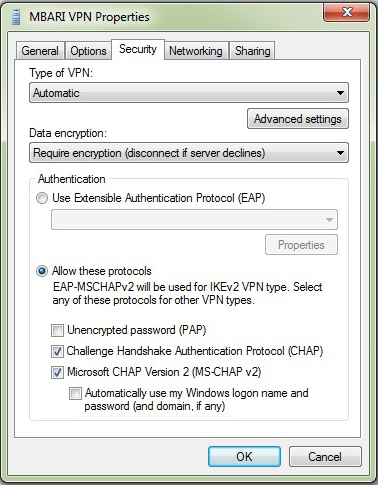
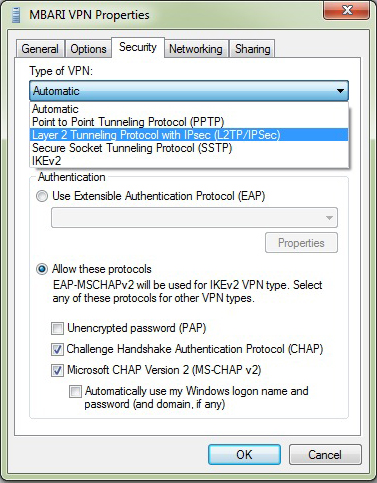
Set Type of VPN to L2TP.
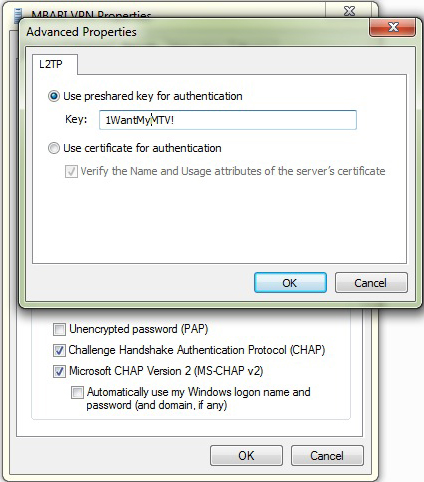
Click on the Advanced Button and enter the L2TP shared key 1WantMyMTV!. Click OK.
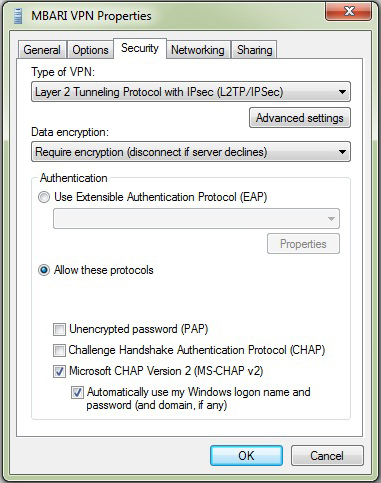
Finally, ensure that only Microsoft CHAP Version 2 is selected. Click OK.
Step 3 - Connect to MBARI's VPN Server
The last thing you have to do is double-click the icon for your new VPN connection. If you didn't save your username an password earlier, enter your username and password and then click connect. After the system connects and you are authenticated against the domain controller, you can access MBARI's internal resources just as if you were sitting at your desk.
Step 4 - Finding the Various Domain Resources
OK - You're finally connected to MBARI using your new VPN connection. But where are all the servers? Unfortunately, Windows doesn't browse remote networks well. So follow these steps to see the domain resources.
First, open My Computer so that you can manually connect to a server.
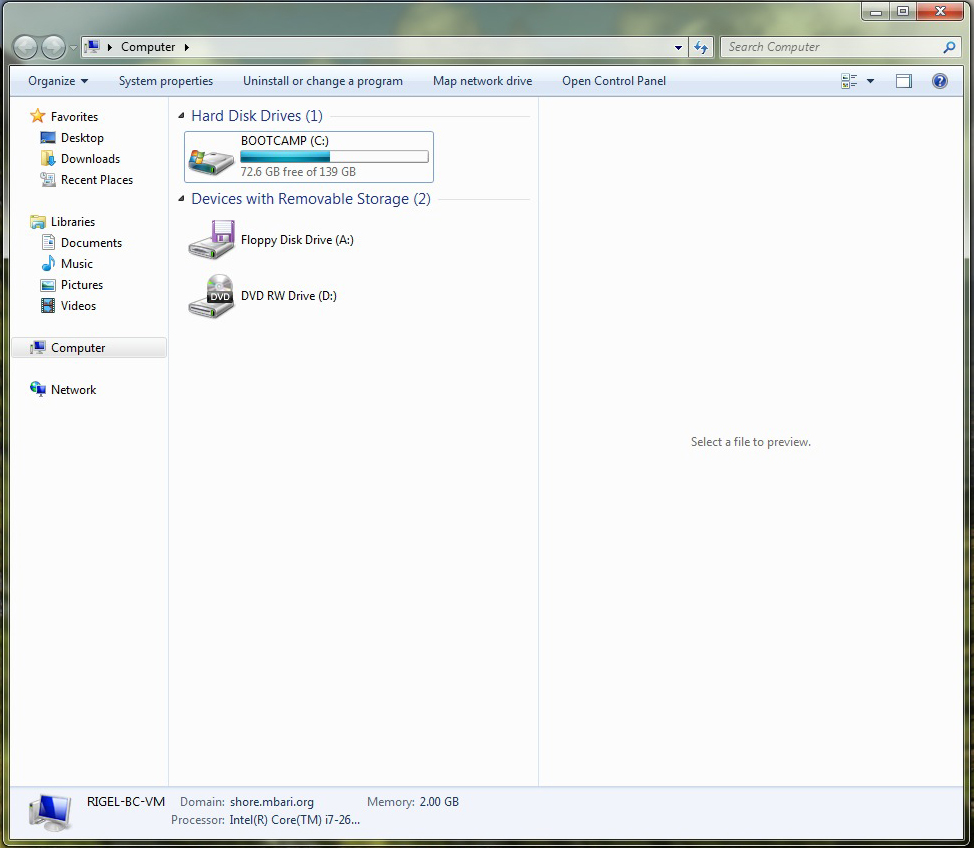
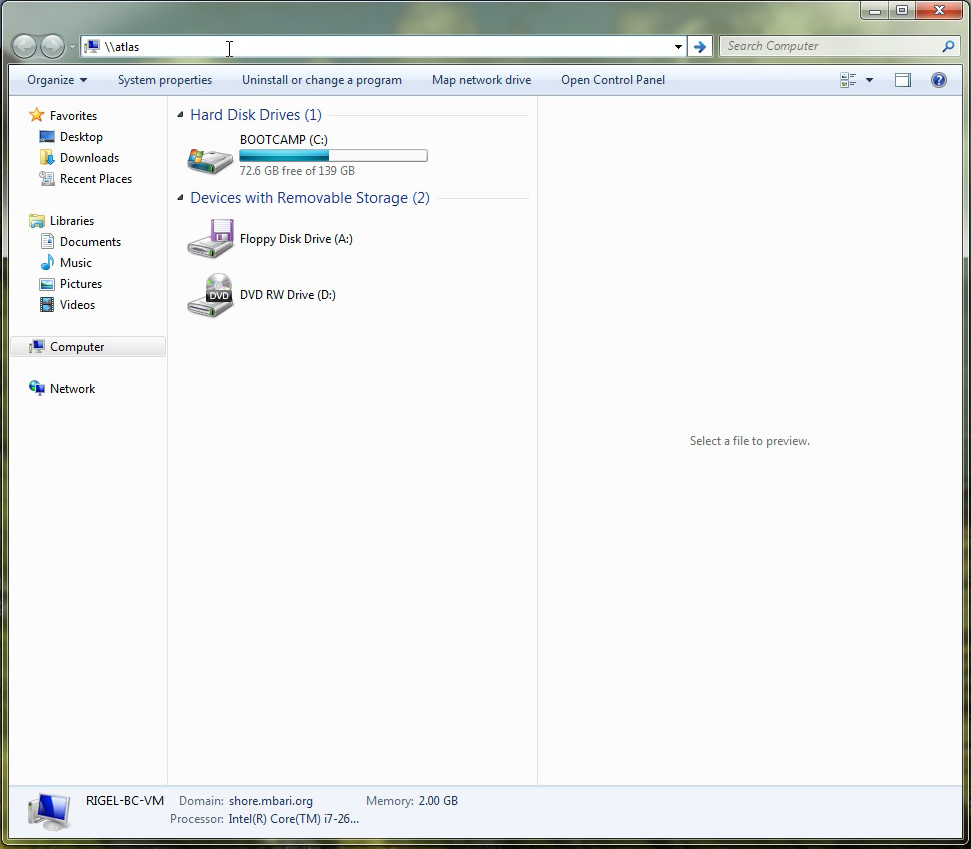
In the address field entered the server name you want to connect to. In this example, we're using \\atlas in the address field. (Don't forget the two reverse slashes in front of the server name.)
Once you hit return, you should see the list of shares that are available on that server.
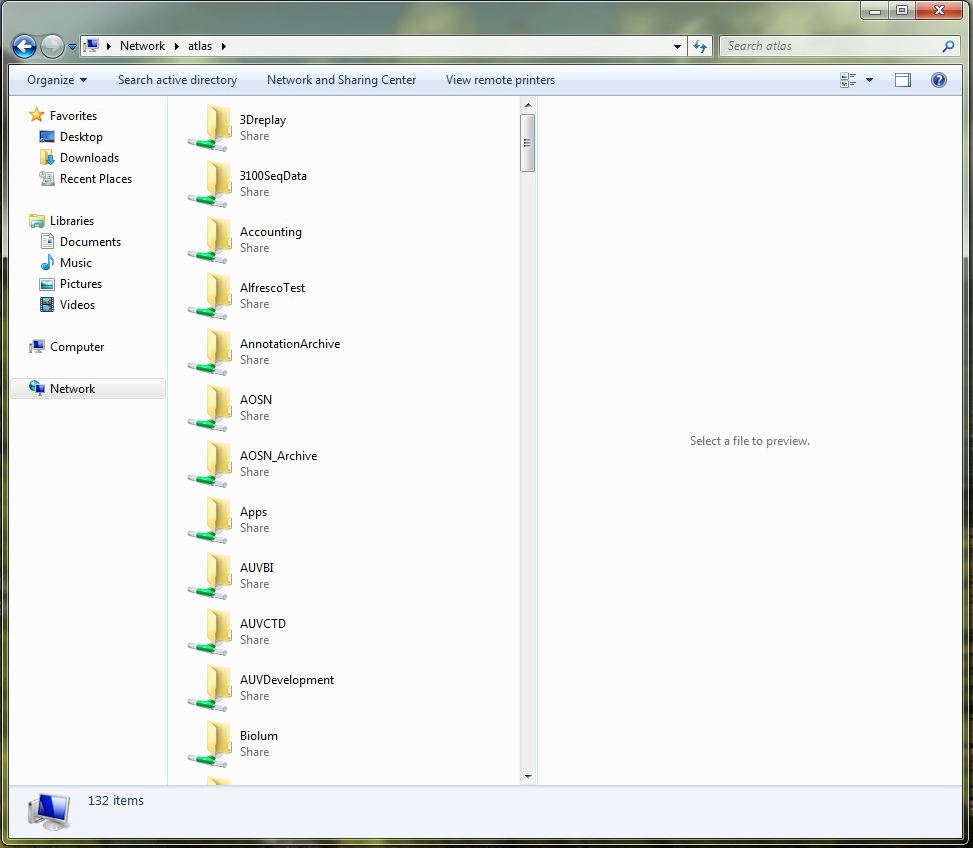
There is may now be other shares available to you in your Network Browser. However, using the above method of mounting shares is really the only foolproof way of seeing network assets.
Additional Info - Split Tunnel
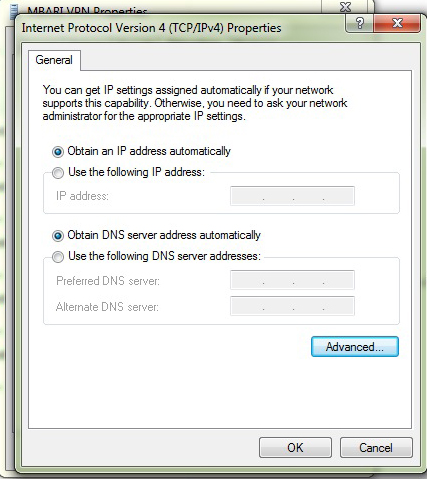
To start or stop Split Tunneling, click on the Networking tab in the Properties window for your VPN network connection. Select Internet Protocol Version 4 and then click the Properties button.
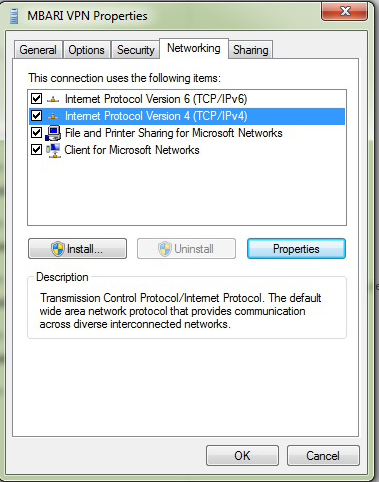
Click the Advanced button in the window that opens
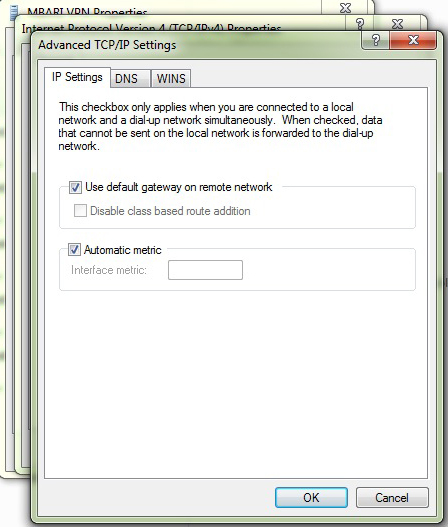
In the IP Settings tab, uncheck "Use default gateway on remote network" to turn Split Tunneling on. Check this box (the default setting) to turn Split Tunneling off.
When not at MBARI, this box should be UNCHECKED. When at MBARI, this box should be CHECKED.
 In Closing
Note: Please be aware that the Information Systems group cannot perform the services of a full-blown ISP when it comes to debugging your home computer. Since the use of MBARI's VPN services implies that you have already subscribed to your own ISP, they should be your resource if you have any problems getting this working. MBARI's Information Systems group cannot be responsible for any problems you may have while configuring your personal computer.