Note panel
Use the Note function panel to create or edit drafting notes and labels.
- Notes are blocks of text that can contain one or more lines.
- Labels are blocks of text with one or more leader lines. You can choose to add arrow heads or other terminating symbols to your leader lines.
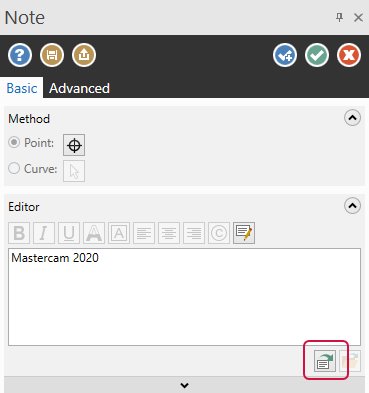
Begin creating the note by typing text in the Editor window. Use the editing controls above and below the window to format the text. Place the note in your drawing by selecting either Point or Curve.
- Select Point to place the note as a rectangular block of text. Drag the text block handles to resize it. Use the Create Arc option to run the text along a curve or arc. You do not need to select an existing entity when using the Create Arc option.
- Select Curve to run the text along an existing line, arc, or spline. Mastercam prompts you to select the entity in the graphics window. Position the text by dragging it along the arc or entity.
- Use the Text Position controls to flip, mirror, or change the orientation of the note.
Use the controls on the Advanced tab to create and format leader lines and access other advanced features.
Leaders on the Advanced tab is only available if Point is selected and Create arc is deselected on the Basic tab.
The following example shows a note on left, and a label with two leaders on right.
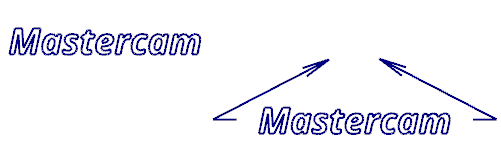
You can also import text from a file. The file must be encoded as UTF-8 Unicode text.
 Can I chain and extrude notes?
You can chain notes to use with toolpaths. Chained notes are associative: you can change the font or text, and then regenerate the toolpath to reflect those changes. Notes can also be associated to geometry, so that if you move the geometry, the notes move with it.
You can chain notes only when Wireframe mode is selected in the Chaining dialog box.
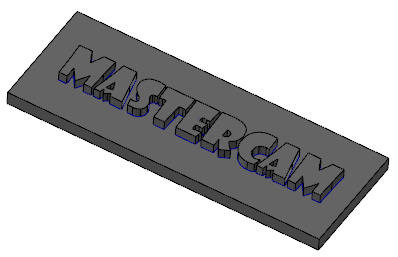
Additionally, you can extrude notes with the Extrude function, with Add boss or Cut body. Mastercam's Extrude function is located on the Solids tab.
Can I create a surface in a note?
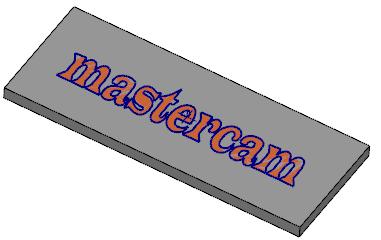
You can create a surface inside a note without breaking the note into geometry. Keeping the note intact allows you to edit it later. After creating a note using a closed TrueType font, such as Arial, use the Flat Boundaryy function on the Surfaces tab or the Cross Hatch function on the Drafting tab to create surfaces or a hatch pattern. The note and the created surfaces are not associative; changes to one do not result in changes to the other.
I really like how my modifications look. How can I save them to use again?
You can update your system defaults without opening the System Configuration dialog box or leaving the graphics window.
Click the Save Defaults button at the top of the panel to save your modifications to corresponding settings in the active system configuration file.

The next time you open the panel, whether or not it is the same Mastercam session, the panel defaults display your newly saved settings.
Help! I hate the formatting changes I made.
If you are not satisfied with your modifications, click the Load Defaults button to pull the system defaults back into the panel no matter how many changes you make.

How do I edit or convert notes from previous Mastercam versions?
Mastercam handles note entities differently if they were created before Mastercam 2021. When you open a part file from an earlier version of Mastercam, Mastercam provides the same support for its note entities as in the version of Mastercam used to create them.
However, many of the formatting and other features introduced in Mastercam 2021 are not available. You have two options for handling the note:
- Do nothing to maintain the note entity in its original format. Click the Edit legacy note button if you need to make changes to the note.
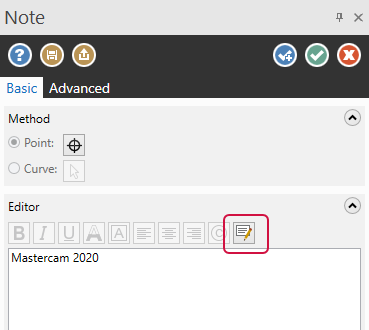
- Select the note and click the Convert legacy note button. Mastercam updates the note entity to the current format.
 NOTE
NOTEYou can also select Convert Legacy Note on the Drafting tab to convert notes without entering the Note function panel.

Beginning with Mastercam 2021, note entities use TrueType fonts only. To use fonts from earlier versions of Mastercam—such as Box or Block fonts—use the Create letters function. However, the letters that you create with this function are not note entities; they are regular wireframe entities such as lines and arcs, and cannot be edited with the Note function panel.


