Options dialog box: Mastercam
Use the Options dialog box, accessed from the File tab, to customize Mastercam's interface. You can set preferences for panels and interface themes, add commands to interface elements, or create shortcut keys. You can also access Quick Access Toolbar and ribbon customization by right-clicking any blank area in the ribbon. Use the drop-downs below to learn more about a specific page.
 Quick Access Toolbar
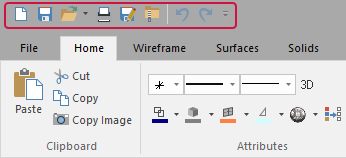
Use the Quick Access Toolbar page to add or remove commands to/from the Quick Access Toolbar, located in the upper-left corner of the Mastercam window.
To add commands
-
Set Choose commands from to the type of commands you want to see.
-
Click a command in the list.
-
Click Add >>.
-
Click OK.
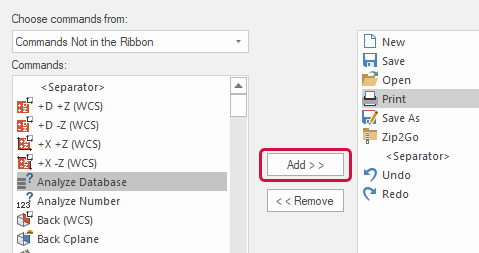
The command appears in the list of context menu items.
To remove commands
-
In the list on the right, click the command to remove.
-
Click << Remove.
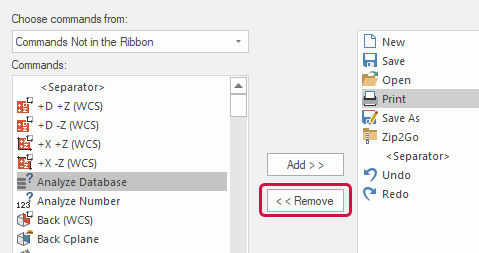
The command disappears from the list of context menu items.
-
Click OK.
To change the command order
-
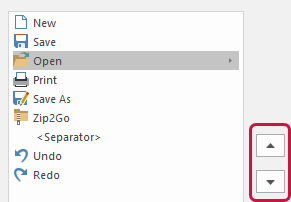
In the list on the right, select the command to move.
-
Click the up or down arrow to move the selected command into position.
-
Click OK.
You can place the Quick Access Toolbar below the Mastercam ribbon by selecting Show Quick Access Toolbar below the Ribbon.
Use the <Separator> item to place a vertical line between groups of commands.
 To change shortcut keys
-
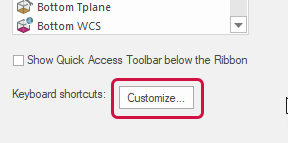
In the Options dialog box, click the Customize button.
-
In the Categories list, select the type of commands to work with.
-
From the Commands list, select the command to map to a new keystroke. If a shortcut key is already assigned to the command, it appears in the Current Keys box.
-
In the Press new shortcut key box, type the shortcut key you want to use with the selected command. If the key you typed is already used, a warning appears. Otherwise, Mastercam shows you that the key is unassigned.

You cannot map functions to key sequences using a single alphanumeric key or one in combination with a [Shift] key. These keys are reserved for use by Mastercam.
-
Click Assign to associate the new shortcut key with the command. The shortcut key appears in the Current Keys box, along with the previous key, if any, that was associated with the command.
-
To remove the old shortcut key, select it in the Current Keys list, and click Remove.
-
Click Close to finalize your selections.
Customize Ribbon

Use the Customize Ribbon page to create, delete, and customize the Mastercam ribbon by modifying tabs and groups. (You cannot remove default functions or tabs from Mastercam's ribbon.) In general, add and delete entries and shortcut keys much as you do with the Quick Access Toolbar (see Quick Access Toolbar above), with the addition of the following functionality:
-
Hide entire tabs by deselecting the checkbox before their names.
-
Place commands at different levels in the hierarchical menu structure. A tab is at the highest level. Under tabs are groups. In the groups are the commands.
-
Add tabs and groups, as well as rename them, with the buttons under the list.
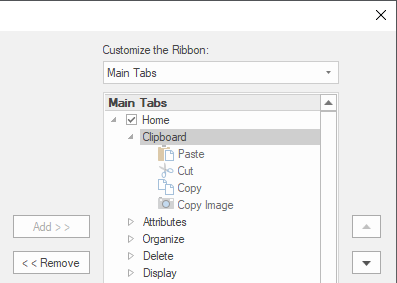
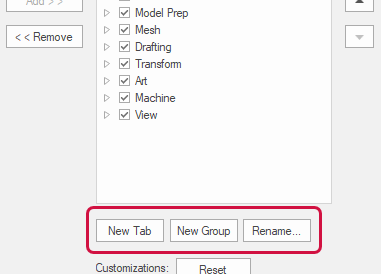
To add a function to Mastercam's default tabs, you must create a new group. You cannot add functions to existing Mastercam groups.
Context Menu
Use the Context Menu page of the Options dialog box to customize the graphics window right-click menu. When you finalize your changes, Mastercam saves your context menu to the .Workspace file. To customize the context menu, add and delete menu entries and shortcut keys much as you do with the Quick Access Toolbar (see Quick Access Toolbar above), with the addition of the following functionality:
-
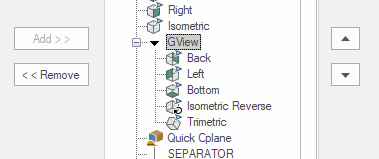
Use subfolders to place commands at different levels.
-
Insert separators, create submenus, and rename items with the buttons under the list.
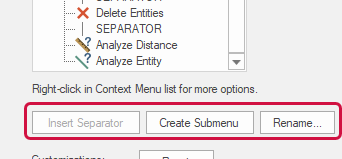
Click the Import button to retrieve context menu customization in a .workspace file from an earlier release of Mastercam. Select the .workspace file, and click Open.
Options
Use the Options page to set display preferences for Manager panels and the interface themes:
- Change the size of the icons at the top of the manager panels.
-
Place Manager selection tabs on the top or bottom of the panels.
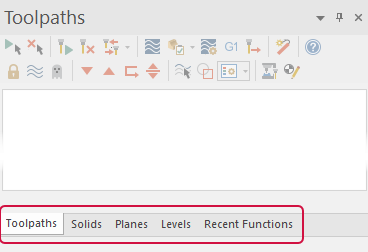
- Set the interface themes to Colorful, White, or Dark gray.
- Choose the interface's accent color.
- Enable or disable the ribbon access keys that appear when the [Alt] key is pressed.
- Select which Quick Mask options display in the graphics window.


