Zip2Go Wizard
Use the Zip2Go Wizard to compress the currently open Mastercam part (and its associated files) into a .Z2G, .ZIP, or .MCAM-CONTENT file. While all three file types compress the content, .MCAM-CONTENT files maintain the folder structure of the files. They can be extracted to the proper folders by dragging the .MCAM-CONTENT file onto Mastercam's graphics window.
When you run the Zip2Go Wizard, it determines if the part file has been altered and, if so, prompts you to save the part before creating the Zip2Go file. Zip2Go scans the machine groups in your current file and captures information such as the following:
-
Mastercam configuration
-
Machine definition
-
Post files
-
Tool and material libraries
-
Wire power libraries
-
ATP files
-
STL files
-
Machine group default and operation files
You can open the resulting zip package with most zip programs, such as WinZip™.
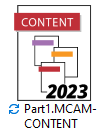
Zip2Go content (.MCAM-CONTENT) files have icons that indicate their version. For example, the following icon indicates a ZipToGo content file created with the 2023 version of the Zip2Go Wizard.
Zip2Go makes it easy to share file information with technical support contacts.
 Creating a new Zip2Go file
-
Start the Zip2Go Wizard (File, Zip2Go).
-
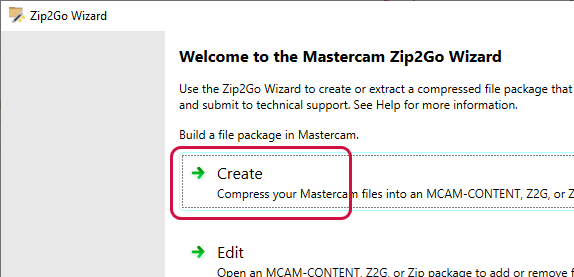
Click Create.
-
If you have a part open in Mastercam, Zip2Go displays the File Options page. If you do not have a file open, Zip2Go asks you to choose a file to load before it displays the File Options page.
-
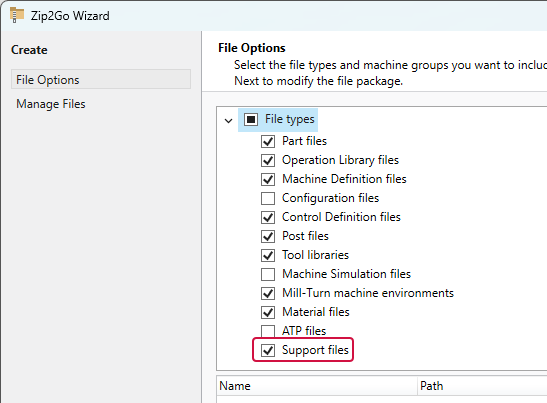
In the File Options page, select the types of files you want to include in the Zip2Go file. You can also remove specific files from those to be included. Support files (see the following image) include text files and exception logs. Mastercam Technical Support needs these files to understand your issue.
-
Click Next.
-
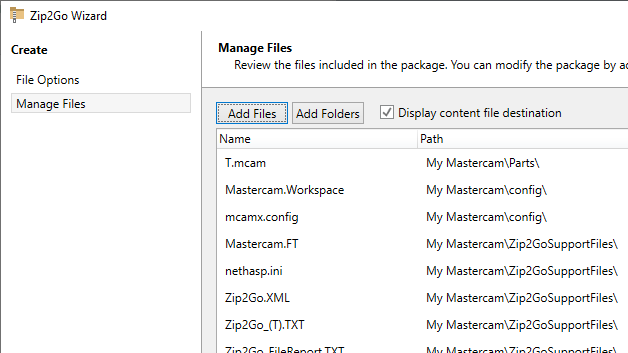
In the Manage Files page, review the files that Zip2Go will include in the package. Also on this page, you can add files and folders, as well as remove files from the list. Use the Display content file destination option to toggle what is displayed in the Path column between source file paths and destination file paths.
-
Click Finish to display the Save As dialog box, where you can name the file and save it.
Editing a Zip2Go file
-
Start the Zip2Go Wizard (File, Zip2Go).
-
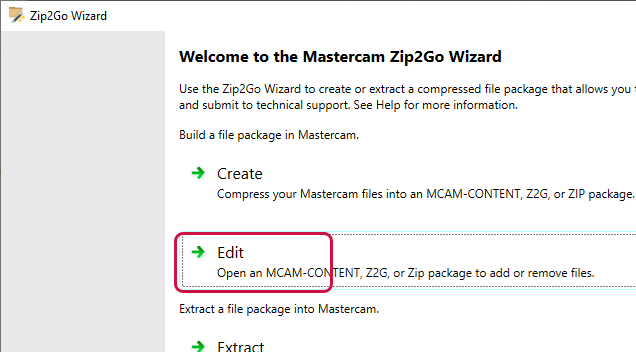
Click Edit.
-
In the Open dialog box, select the Zip2Go file to edit.
-
In the Manage Files pane, add and delete items as needed.
-
Click Finish to display the Save As dialog box, where you can name the file and save it.
Extracting from a Zip2Go file
-
Start the Zip2Go Wizard (File, Zip2Go).
-
Click Extract.
-
In the Open dialog box, select a .Z2G, .ZIP, or .MCAM-CONTENT file from which to extract.
-
If you selected a .ZIP or .Z2G file, follow these steps:
-
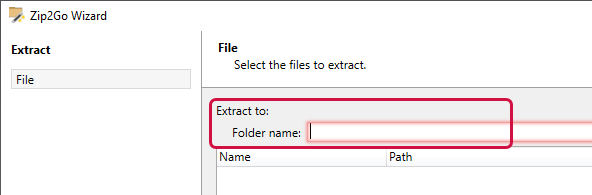
In the File pane, enter the path to which to extract files. The files to extract appear in the file list.
-
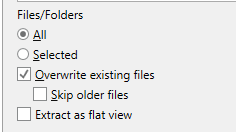
Use the options at the bottom of the File pane to specify how to extract the files.
-
Click Finish. Zip2Go extracts the files to the path you chose.
-
-
If you selected a MCAM-CONTENT package, follow these steps:
-
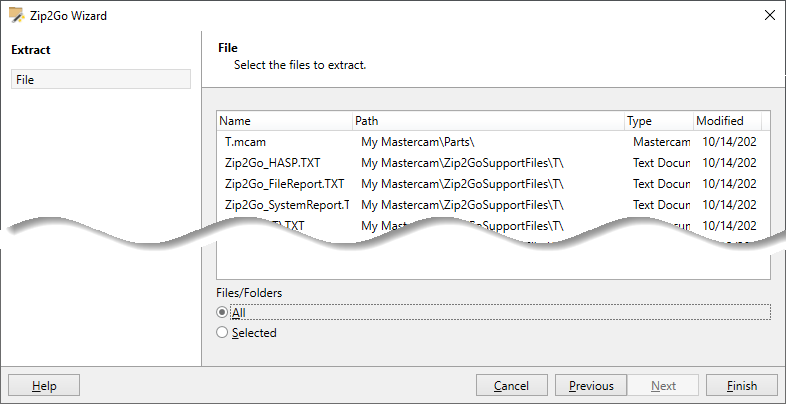
In the File pane, select the items to extract.
-
Click Finish. Zip2Go extracts the selected files and places them in the locations shown in the Path column of the File pane.
-
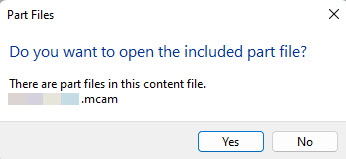
A prompt appears asking if you want to open the included part file. When you click yes, the file will open automatically. If you click no, the file will not open.
-
-
To more quickly extract a Zip2Go .MCAM-CONTENT file, drag it into Mastercam's window.
Zip2Go report files
The Zip2Go Wizard creates the following reports in a read-only .TXT format:
Zip2Go_yourpartfilenamehere.txt
This report lists the files used by each machine group in the part file. For example:
- File name and path with date and time
- Version of Mastercam you are using, and units of measure
- Default and operation files (including Wire power library files)
- Mill, Router, and Lathe custom tooling
Zip2Go_SystemReport.txt
This report contains information about the computer on which the package was created. For example:
- The version of Microsoft Windows
- The amount of RAM
- Information about the graphics card
- Information about your monitors and their resolution
- Registry settings used by Mastercam (the Mastercam registry keys under HKCU and HKLM)
Zip2Go_FileReport.txt
This report lists all the files in your Mastercam installation. The Mill, Lathe, Router, and Wire folders (and their sub-folders) in the Mastercam install folder (Mastercam 2026.R2) are not scanned. Furthermore, part files found in any folder that is scanned will not be included in this list. This ensures that the gathered data never includes potentially confidential information.
Zip2Go_HASP.txt
This report contains information from the Mastercam HASP on all the files for Mastercam, including the HASP serial number and the products licensed on the HASP. It also detects if Mastercam CONNECT is active, and if so, the report includes the Mastercam CONNECT expiration date.


