NET-Script Editor
Use the NET-Script Editor to create, test, and run C# scripts directly from the console. You can access the NET-Script Editor from the Add-Ins group on the Home tab.
Use the following links to access Mastercam's API documentation.
-
.NET API. This is Mastercam's main API for .NET languages: nethookdocs.mastercam.com.
-
ToolNet API. This contains functions for working with tools and tool libraries: toolnetapidocs.mastercam.com.
-
SimAccessManaged API. This contains functions for querying the Mastercam license: simaccessmanageddocs.mastercam.com.
You must be a registered Mastercam user to access this documentation.
C# is the only supported scripting language.
 Customizing the editor
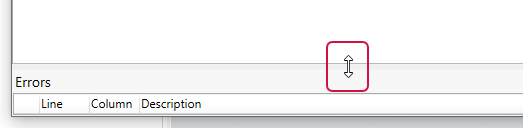
The NET-Script Editor window by default is divided into two panes: the top pane is for your code, the lower pane displays run-time or compilation errors. Click and drag the divider to enlarge the Errors pane.
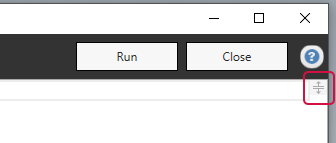
Click the Split button in the upper-right corner to divide the code window into two panels. Each panel scrolls separately so you can view two parts of your code at the same time.
Working with scripts
To create your script, simply begin typing in the code window and separate lines with carriage returns.
-
Click Run to execute the code in the window.
-
Click Compile to process the script and see if there are any errors. Do this to test the script for errors without actually running it.
Whether you are running or compiling the code, Mastercam displays any syntax errors in the Errors pane.
Click New to clear the contents of the window and create a new script. You will be prompted to save the existing contents.
-
Click Open to load an existing script.
-
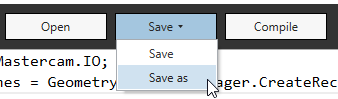
Click Save or Save as to save your work.
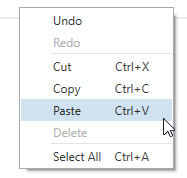
Right-click in the window to see standard Windows editing commands.