Verify Selection function
The Verify Selection function makes geometry selection easier and more accurate. When you move your mouse cursor over geometry in the graphics window, the cursor changes to show the type of geometry over which the cursor passes; a click selects that geometry.
If you hover over geometry, after a short delay, the cursor changes to show the number of selections (including hidden geometry) you can make.
-
Left-click to select the geometry that the cursor is on.
-
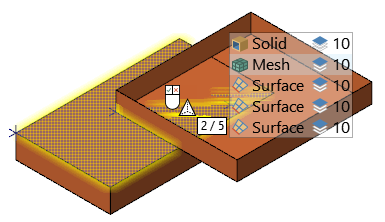
Right-click to display a menu of possible selections, as shown in the following image.
From the right-click menu, choose the entity you want, and then double-click to finalize the selection. Cycle through the choices by scrolling the mouse wheel, by right-clicking, or using the cursor keys. The entity list also displays the levels on which geometry appears.
Use Quick Masks to limit the types of geometry the selection verification shows in the geometry list. For example, if you select the surface-only and mesh-only Quick Masks, only those types of entities will appear in the geometry list.
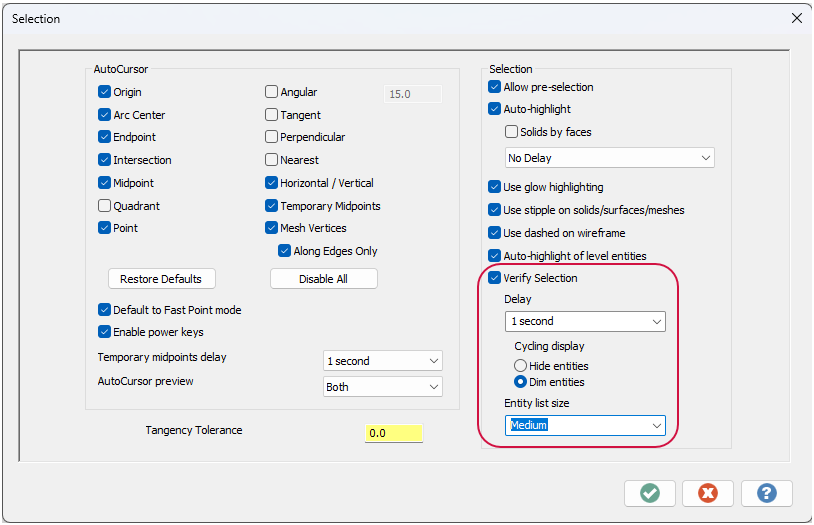
Customize the selection function by choosing Selection Settings in the Selection Bar. In the Selection dialog box, you can change the delay time, how entities display, and the size of the menu. These customizations are also available in the Selection page of the System Configuration dialog box.