Change Levels dialog box
Use the Change Levels dialog box to change the level of one or more selected entities. When changing levels you can:
- Choose between moving and copying the entity to a level.
- Select the main level, or enter a level number, if you know it. Choosing Select opens the Levels dialog box where you can choose from all used or named levels or assign a new main level.
- Change the name or level set of the selected level.
- Manage the display of the assigned level in the graphics window.
 To change the level of one or more entities
- Select one or more entities.
-
Click Change Level in the Organize group of the Home tab.
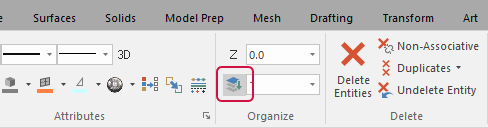
- In the Change Levels dialog box, choose between Move or Copy.
- Under Level Number, do one of the following:
- Select Use active level to move or copy the entities to the main level.
- Deselect Use active level, and enter the number of the level you want to move or copy the entities onto. If the level entered is not visible, select Force visibility to display or hide the assigned level.
- Click Select to choose the level number from the Levels dialog box.
- Click OK to change the selected entities level.
Parameters
Move
Moves the selected entities to a different level in the drawing.
Copy
Places a copy of the selected entities on to a different level in the drawing while keeping the original entities on the current level.
Use active level
- Select to move or copy selected entities directly to the active level.
- Clear to enable the Number field and Force visibility option.
Number
Type the number of the level that you want to assign, or choose Select to select a level using the Levels dialog box.
Name
Displays the name of the selected level. You can also edit the name of the selected level by typing a new name in the field.
Level set
Displays the level set value of the selected level. You can also edit the level set of the selected level by typing a different value in the field.
Select
Temporarily minimizes the Change Levels dialog box and opens the Levels dialog box, where you can choose from all used or named levels or assign a new main level.
Force visibility
(Available only when Use active level is not selected.) Select to manage the display of the assigned level in the graphics window. If Force visibility is left unselected, the level displays as it is defined in the Levels Manager.
- Choose On to display the assigned level, even if it was previously hidden.
- Choose Off to hide the assigned level, even if it was previously displayed.
This setting will not hide the active level if Active level is always visible is on. The status line under the radio buttons shows the current state of that option. Manage the Active level is always visible option from the Levels Manager box or the Screen property page.


