Simulation Options (Mill-Turn)
Use the Simulation Options dialog box to configure how Simulation will display your Mill-Turn part when it is launched.
To set these options:
-
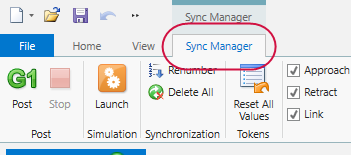
Select the Sync Manager contextual tab, if it is not already selected.
-
Select the Simulation Options dialog box launcher.
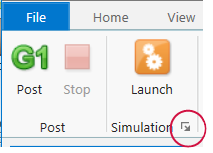
The Simulation Options dialog box displays.
-
Select the desired options.
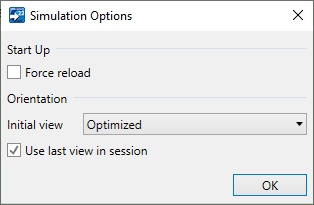
- Select Force reload to remove cached copies of component models and other supporting files for the current .machine file environment. This forces Mastercam to reload the .machine file and ensures that your part will simulate correctly if changes have been made to the .machine file or its component models.
- The Initial view selection determines in which view Simulation will open. You can choose any of Mastercam's standard views or the Optimized view, which adjusts the Front view for a cleaner view of the work envelope.
- Choose Use last view in session to use the most recent view from the last time you ran Simulation in the current session.
Set the default values for these options in the Applications Options dialog box. These options apply to Mill-Turn Simulation only. They do not affect Machine Simulation for Mill or Router.


