Fill Holes panel
Scanned or imported mesh data quality can be highly variable. Such entities often have holes in areas missed by the scanner or probe and may need improvement before you can machine the part. The Fill Holes function seals gaps in the mesh and prevents tools on future toolpaths from plunging into holes in the entity. It includes options to control the shape and construction of the facets that Mastercam creates to fill the gaps.
Run Check Mesh before using any of the Modify functions on the Mesh tab to ensure your mesh is error-free. If it is not and you attempt to use one of those functions, Mastercam reports an error and you cannot continue until the mesh is fixed.
For more information, see Fixing Mesh Errors.
After you select the mesh, Mastercam detects and highlights any open edges. Mastercam will not highlight holes that are a part of the continuous mesh. Choose the edges you wish to fill and use the panel options to generate facets that work best for your application. Ear clipping fills the hole by generating the minimum number of facets, while the Planar projection types project facets across the gap in a disc or a grid pattern from the highest edge.
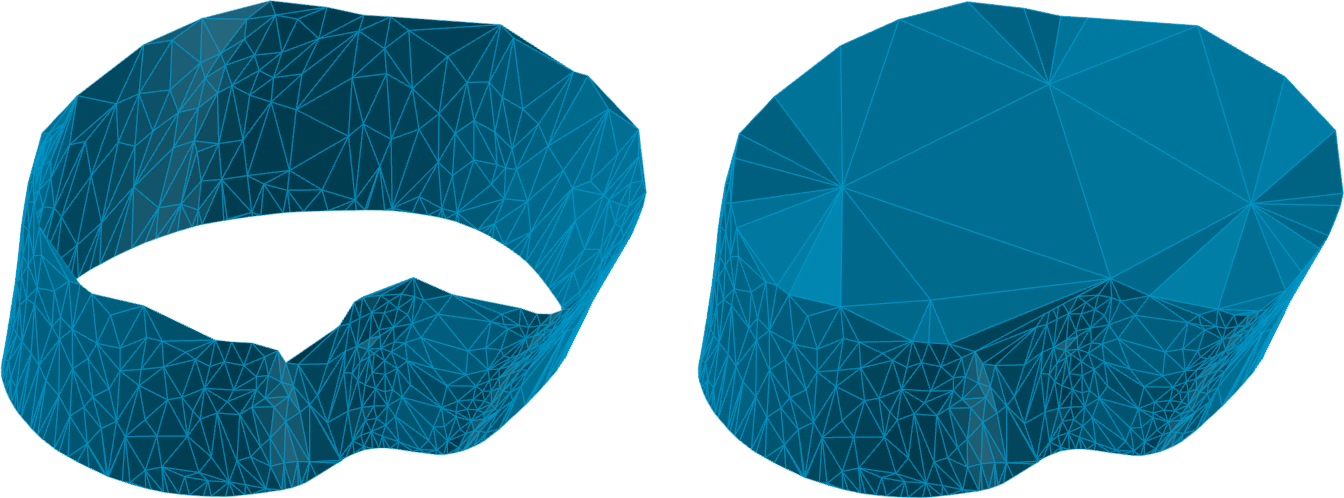
To improve your results, use the Smooth Free Edges function prior to the Fill Holes function to refine the facets on the sharp edges of the hole.
Fill Holes includes an automatic preview, as well as the ability to change the color of your results and/or place them on a selected level. Click the Preview button in the panel to view your changes in the model before committing them. Deselect the automatic preview option to speed up the calculation process.
After you apply this function, Mastercam checks the modified mesh to see if any errors have been introduced. If found, Mastercam temporarily marks the problematic facets in the graphics window and a dialog box displays. You can delete the errors at that time. (Mastercam removes the indicators whether you select Yes or No.)
 What is the difference between this function and the mesh creation operations in Modify Mesh Facets?
The operations in the Modify Mesh Facets function will quickly fill small holes while automatically matching the curvature of the original mesh.
Fill Holes is designed to detect and seal large gaps in your imported mesh. It provides more control over the shape and distribution of a large number of facets that are recreated to fill the hole. Additionally, it can project a grid or a disc of generated facets above the edges of the gap.


