Hole Axis panel
Use the Hole Axis function to create axis lines in circular holes in solid bodies, with or without history. The resulting axis lines display using your current system attribute settings, including line size and color. Options in the function panel let you create points and circles on the ends of the axis lines. You can also use this function to reverse the direction of axis lines.
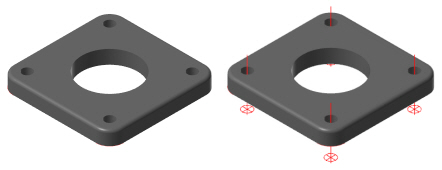
 How do I use the Orientation and Direction options?
The Orientation options in the Hole Axis function panel allow you to set the orientation direction of the selected holes. You can select one of three options:
-
First pick: Orients the direction of all holes to the same direction of the first selected hole, as defined by the solid.

-
Cplane: Orients the top of the selected holes to match the positive direction of the Z axis of the current Cplane.
-
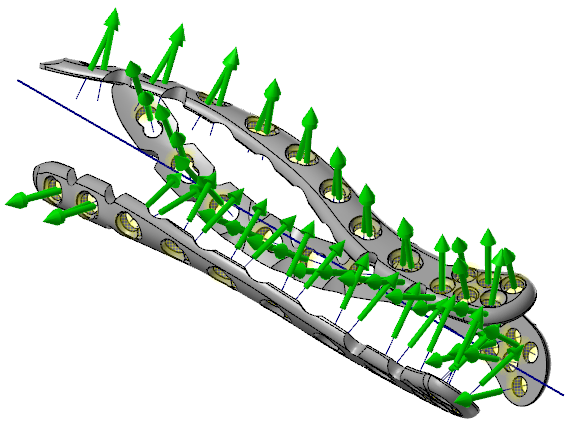
Axis: Orients the top of the selected holes to point away from the axis. When you select this option, you are prompted to select a line, edge, or two points to specify the direction.
If you select a line or a linear edge, the axis is defined. If you select a point, you are prompted to select the second axis end point that defines the axis.
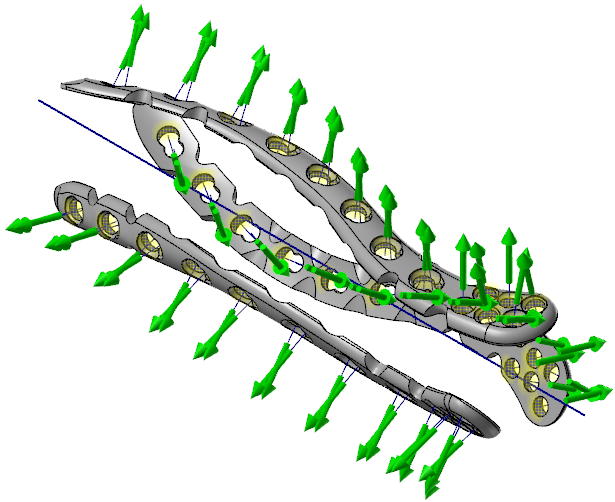
Once your selected holes have been oriented, you can use the Direction options to flip the direction of all holes. The examples below have Orientation set to Axis.
When Direction is set to Defined, the resulting part is:
When Direction is set to Opposite, the resulting part is:
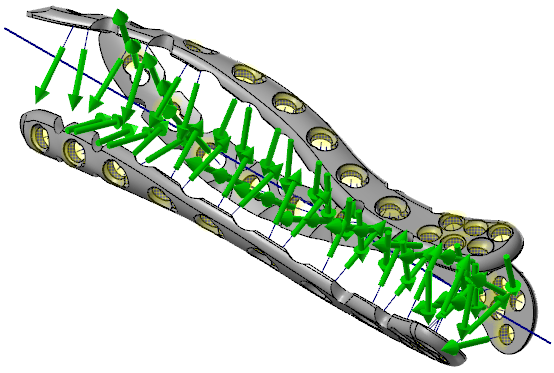
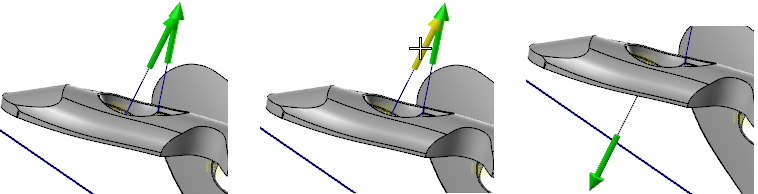
You can also flip the direction of an individual hole axis by selecting its arrow in the graphics window.