Mastercam Copilot
Mastercam Copilot is your AI-powered Mastercam assistant designed to help improve your workflow. It offers different modes of assistance which include Help, Command, and Automatic. Mastercam Copilot works with all of Mastercam's help documentation to give you seamless support. To activate Mastercam Copilot, simply type in a question or select the microphone icon to activate speech-to-text and start your chat.
Access to Mastercam Copilot
There are two versions of Mastercam Copilot. The web browser version offers only the Help mode. This version does not have access to controls in Mastercam and only offers quick information and links so that you can take a deep dive into your topic of choice. The Command and Automatic modes are available within the installed version of Mastercam Copilot.
Both options require you to log into myMastercam.
| Icon | Mode |
|---|---|

|
Help
Help mode in Mastercam provides information only. When using Help mode, Copilot retrieves information from two sources.
Mastercam Copilot uses these sources to answer your questions in chat and link to external resources such as time stamped videos and help pages. |

|
Command Command mode instructs Mastercam Copilot to execute commands and perform tasks within Mastercam. Just type in the command you would like to execute to engage this feature and confirm your changes when asked. For example, if you type "fit to screen," Mastercam fits your geometry to the screen automatically. It can also open panels and dialog boxes for you. Note that this mode does not provide help content. It simply attempts to execute your request. |

|
Automatic Select Automatic mode to have Copilot complete a task for you or offer you help content. Copilot will determine the appropriate assistance based on the phrasing of your query and may suggest alternative functions you can perform. |
Active Listening
Copilot supports voice commands through the Active Listening feature. When Active Listening is enabled, you can use the keyword Copilot to execute commands.
To enable Active Listening:
-
Open the Settings menu from the User Menu.
-
Select the checkbox for Allow active listening. This enabled the voice command functionality.

There are two ways to deactivate Active Listening. The first is to click Stop Listening in the Copilot prompt area. You can also say Copilot, stop listening. This immediately deactivates listening mode.
 How do I create machine groups with Copilot?
To create machine groups using Copilot, you can issue a single command that defines both the machine group and its operations. Copilot supports creating machine groups with custom names using either the default machine or any machine located in the /CNC_MACHINES folder.
After activating Copilot, enter a command such as:
Create a mill machine group using the default machine with a contour operation and a 2D high-speed operation.
Copilot will then briefly pause and execute the command. Once complete, a confirmation message will appear indicating that the machine group and operations have been created. If necessary, you can revert these changes manually or by issuing a Copilot command.
How can I edit feeds and speeds with Copilot?
To edit feeds and speeds with Copilot, start by activating Copilot and entering a command that specifies the operation and the new parameters. Include the operation name along with the desired feed rate and spindle speed values.
For example, you might enter:
Edit the feeds and speeds for the contour operation to set the feed rate to 25 inches per minute and the spindle speed to 3000 RPM.
Copilot briefly pauses, then applies the changes and displays a confirmation message when the update is complete.
If needed, you can revert the changes manually or by issuing another Copilot command. This functionality supports multiple toolpath types, and Active Listening must be enabled if you are using voice commands.
How do I manage my conversations in Mastercam Copilot?
You can manage conversations and view your history of chats in Mastercam Copilot whether it’s open in a separate window or in Mastercam.
When Copilot runs in its own window, the conversation list appears on the left side of the panel. Each conversation is automatically titled and saved. All conversations and the option to start a new one, will be visible to the left of the window. You can also select the navigation icon to close the conversation history panel.

To rename or delete a conversation, select the three dots to the right of the conversation title.
When Copilot is opened in Mastercam, the conversation list appears on the left side of the panel if space allows. If the list is not displayed, lengthen your click the icon to the top left corner of the panel to open it as shown below.
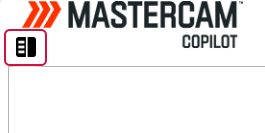
From here, you can view your history of conversations, select an old one, or start a new one.
To rename or delete a conversation, select the three dots next to the conversation title.
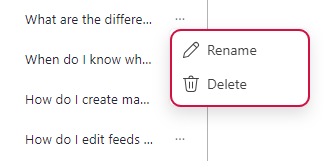
Conversations cannot be restored once they have been deleted.
Continuous Improvement
Mastercam Copilot is always evolving. Regular updates and expanding information make your AI powered assistant more helpful. Check in with your AI-powered assistant often to see how it can assist you.


