Operation Strategies
Use the Operations Strategies editor to create and manage the part-handling strategies that are stored in your .transfer file. Part-handling strategies model the sequence of events that occur on your machine tool for such applications as:
- part transfers
- tailstock operations
- pickoff and cutoff operations
- any other sequences of turret and spindle operations
For example, a part transfer operation usually includes a series of individual operations to park the turrets, sync the two spindles, move the sub-spindle to grip position, clamp and unclamp the stock, and cut off the part. When users select a part-handling strategy in Mastercam, Mastercam automatically creates all of the individual operations in the proper order instead of forcing users to create them one-by-one.
Follow these steps to create a part-handling strategy.
- Open the .machine file in Code Expert.
- Double-click the .transfer file.
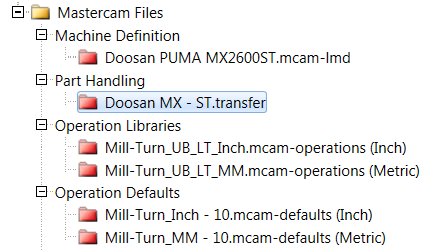
Mastercam opens a new session and displays the Operation Strategies editor.
- Choose the Pickoff/Cutoff tab or the Tailstock/Center tab.
The remaining steps and pictures in this topic show operations for a Pickoff/Cutoff strategy, but the workflow is the same for a Tailstock/Center strategy.
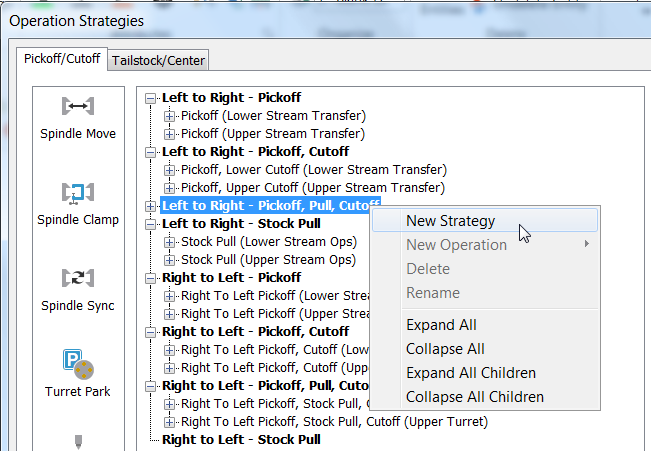
- Right-click on the strategy group that best matches the part-handling strategy that you want to create, and select New Strategy.
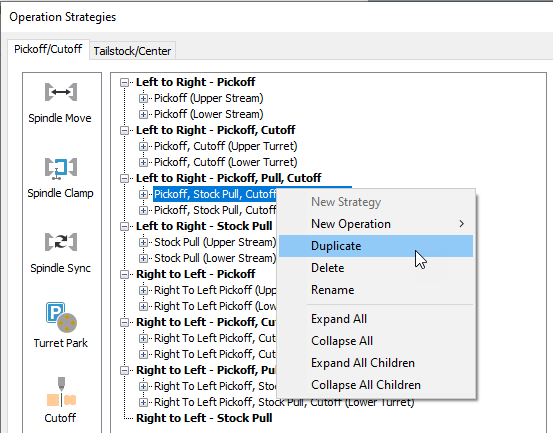
You can also create a new strategy by copying an existing one. Right-click on the strategy that you want to copy and select Duplicate.
- Enter the Name, Comment, and Toolpath group name.
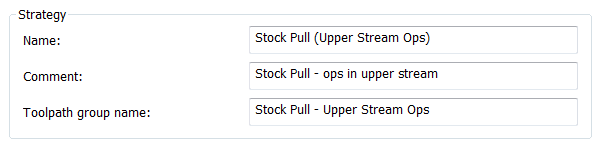
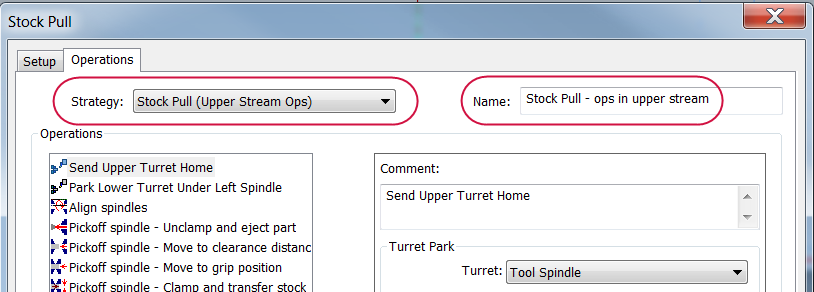
These strings are visible to users of your .machine file when they select a strategy group in Mastercam:
- The Name appears as the Strategy label.
The Comment appears as the Name.
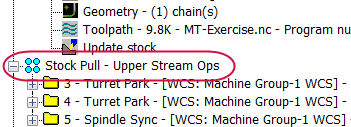
The Toolpath group name is used to store the operations that are created by the strategy.
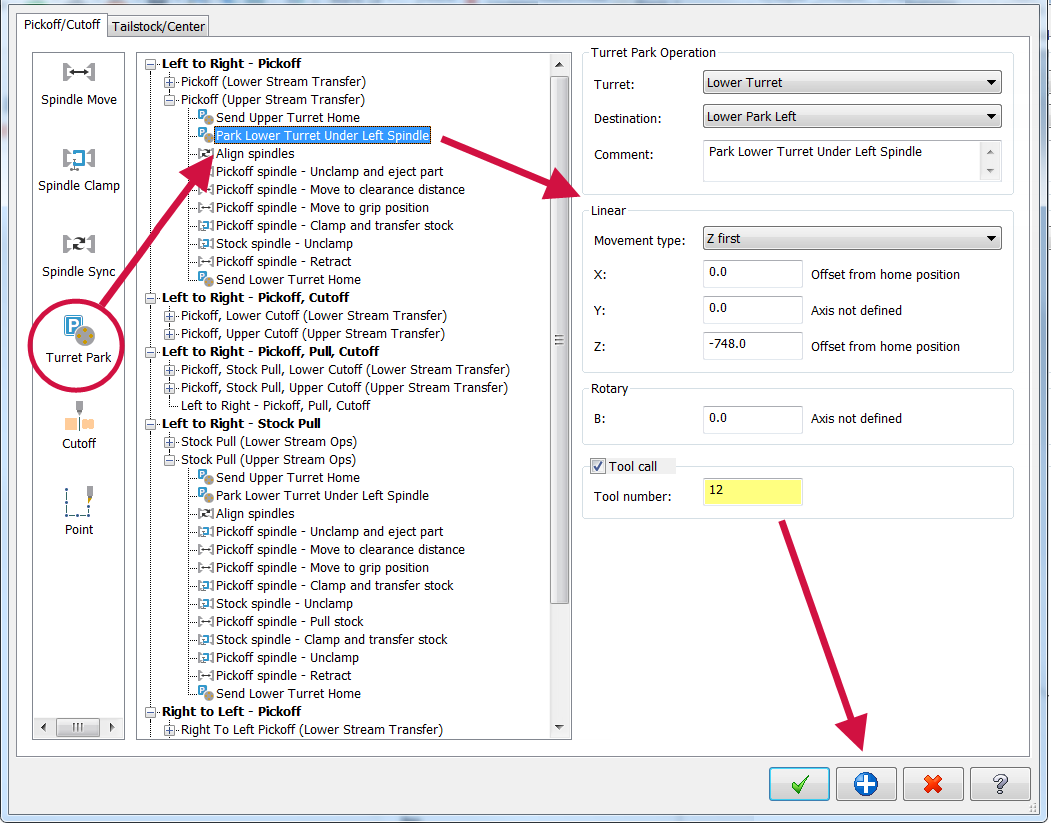
- Add operations to the strategy by dragging and dropping from the left pane.
- Configure each operation after you add it.
- Feed rate and linear dimension fields let you specify both U.S. and metric values. Make sure you include values for each so your .machine file will support users of both units.
- Click Apply after completing each operation.
-
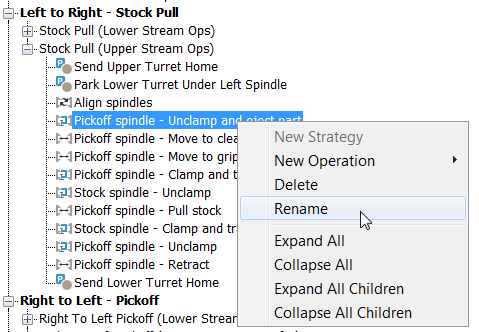
As you build the strategy, you can re-order operations by dragging them. Right-click on an operation to rename or delete it.
- Click OK when you are done.
Mastercam displays the Machine Definition Manager.
- Close the Machine Definition Manager. Do not make any changes or do anything else in the Machine Definition Manager.
- Close the Mastercam session and return to Code Expert. Do not save when Mastercam prompts you.
-
The .transfer file in Code Expert is marked "dirty" with an asterisk. This indicates that it has unsaved changes.
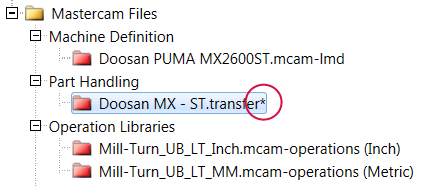
- Click in the Machine Explorer and press [Ctrl+S] to save the .machine file.
 Invalid operations
Mastercam displays a warning icon if any operations in a strategy are not valid.

The most common reason for this is an invalid reference position or turret park position. To fix this, open the operation and reselect the reference position or turret park position.
Another common reason is that the operation uses a component that is not present on the machine—for example, a second turret or spindle. This can happen when you are sharing the same .transfer file among different machines. However, this is unlikely to be a problem because Mastercam filters the list of available strategies to only those supported by the machine or part setup, so your users will not see the invalid strategies.


