Decimation panel
Often, imported or scanned mesh bodies have more information than necessary for use in Mastercam. This results in extreme file sizes and slower processing. The Decimation function reduces the number of facets in a mesh model while giving you control over how closely the modified mesh matches the original. This reduces the file size of the mesh entity.
The Decimation function panel contains two important sections: Calculation and Results. Enter your goals and constraints into the fields of the Calculation section and view the statistical effects of your changes in the Results section. Click the Preview button in the panel to view your changes in the model before committing them.
Because mesh models use an increased number of facets to express areas of greater detail, it would not be appropriate to simply remove facets from the model. Decimation uses the values you enter in the Preservation angle and Approximate facet shift fields to help maintain the integrity of the model. These values limit the how much individual facets can change in relation to each other.
After you apply this function, Mastercam checks the modified mesh to see if any errors have been introduced. If found, Mastercam temporarily marks the problematic facets in the graphics window and a dialog box displays. You can delete the errors at that time. (Mastercam removes the indicators whether you select Yes or No.)
The following two images illustrate how a parameter can alter your result. Although the Reduction percentages between the two examples are nearly equal, a change in Preservation angle results in a significant difference in facet size and distribution.
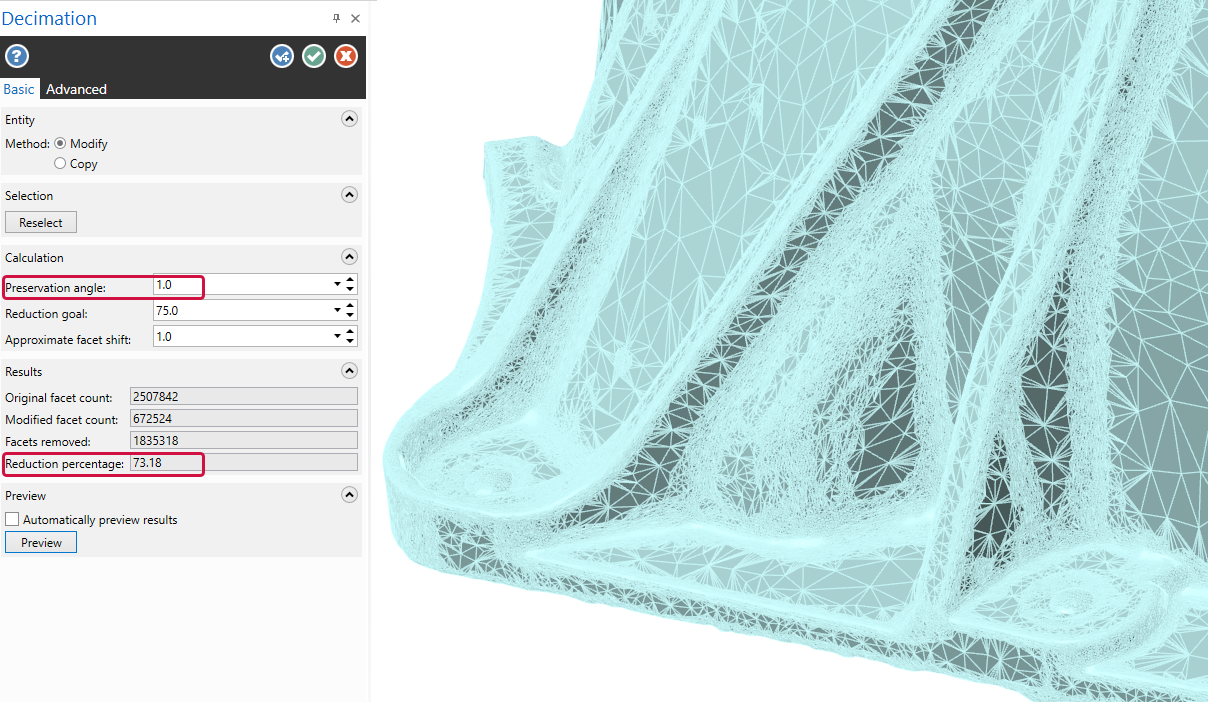
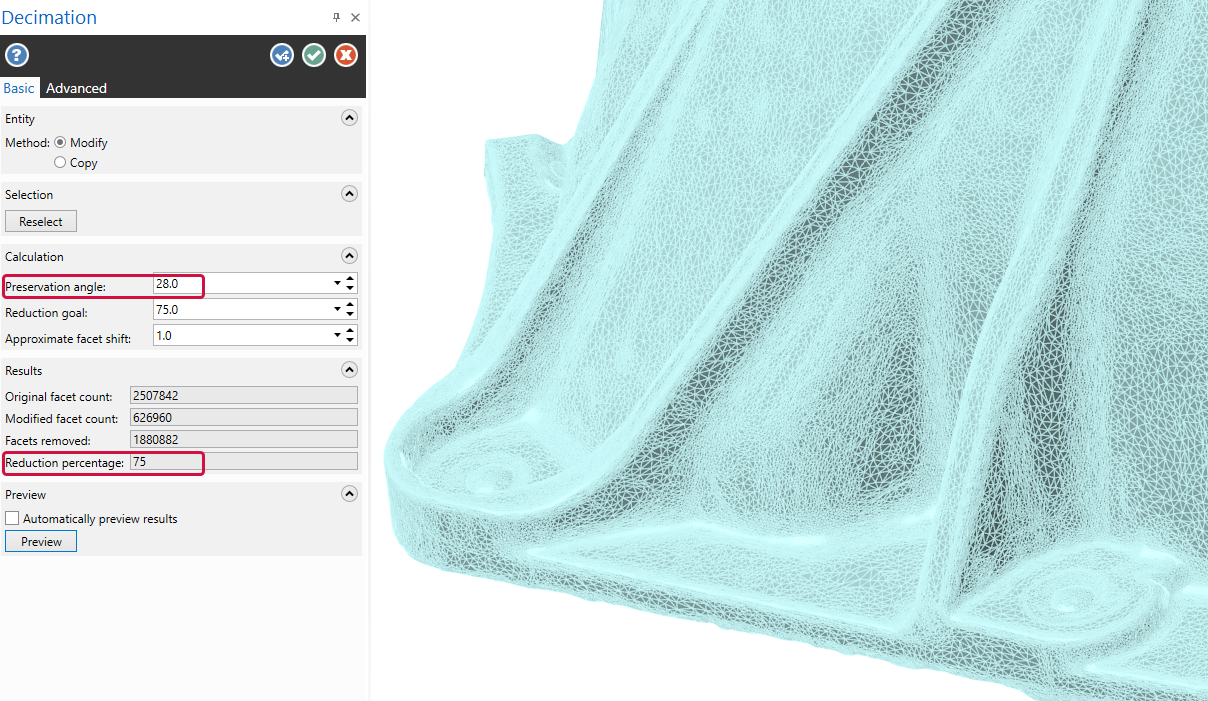
Initially, it may be easier to start by entering your Reduction goal. The fields in the Results section will show you how close the model can get to your goal while remaining within the restrictions set by the Preservation angle and Approximate facet shift. Adjust the values in these fields to get closer to your goal without radically altering the model. You may need to find a compromise between your reduction goal and distorting the model.
Run Check Mesh before using any of the Modify functions on the Mesh tab to ensure your mesh is error-free. If it is not and you attempt to use one of those functions, Mastercam reports an error and you cannot continue until the mesh is fixed.
For more information, see Fixing Mesh Errors.


