Refine panel
Use the Refine function to hone imported mesh models to better suit a specific application. Unlike the Decimation function, which is used only to reduce the number of facets in a mesh model, Refine tries to revise a mesh model by redistributing its facets, constrained by parameters that you define.
Refine offers two strategies for honing mesh models:
- Anisotropic - This refinement strategy, which works best with organic shapes, allows facets of varying sizes (left image below).
-
Isotropic - This refinement strategy tries to keep the shape's facets close to the same size (right image below).
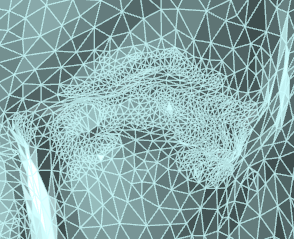

Anisotropic Refinement Isotropic Refinement
The tooltips that display when you hover your mouse over fields in the Refine function panel describe what the parameters do. However, you will discover that using Refine is more about experimenting with the parameters than it is applying exact values to get a specific result.
For example, the Preservation angle parameter works by constraining movement between adjacent facet edges. (Think of those edges as hinges, and Preservation angle as being how far those hinges are allowed to angle facets relative to each other, like hinges on an opening or closing door.) While you can understand the angle change of a few of those "hinges," in a model with many thousands of facets, the full result is impossible for you to predict.
Run Check Mesh before using any of the Modify functions on the Mesh tab to ensure your mesh is error-free. If it is not and you attempt to use one of those functions, Mastercam reports an error and you cannot continue until the mesh is fixed.
For more information, see Fixing Mesh Errors.
After you apply this function, Mastercam checks the modified mesh to see if any errors have been introduced. If found, Mastercam temporarily marks the problematic facets in the graphics window and a dialog box displays. You can delete the errors at that time. (Mastercam removes the indicators whether you select Yes or No.)


