Section View
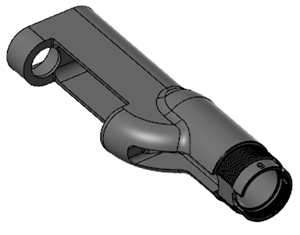
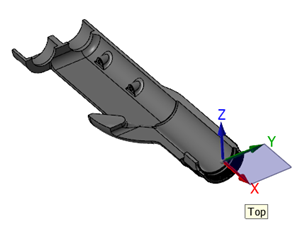
Section View allows you to use the Planes Manager and planes to cut your part into sections to view inside your part. Section View can be toggled on the View tab or on the Planes Manager.
| Section View (Off) | Section View (On) |
|---|---|
|
|
You can control which entities are being cut. Use the drop-down menu to select one of the following:
- Stock Models
- Shaded Entities
- Wireframe Entities
- Toolpaths
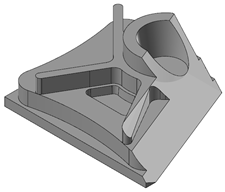
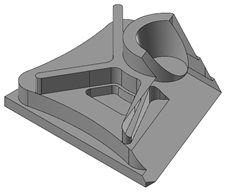
Use Show Caps to fill in sections of the part with a solid cap, as shown below:
| Show Caps (On) | Show Caps (Off) |
|---|---|
|
|
 How do I use section views?
The Planes Manager allows you to create a section view by cutting a plane in order to see a section of the part. To create a section view using an existing plane, click in the Section column of the Planes Manager on the plane you want to use. Section View on the View tab, or Section View on the Planes Manager must be toggled on in order to show the section view in the graphics window. You can select multiple planes at a time.
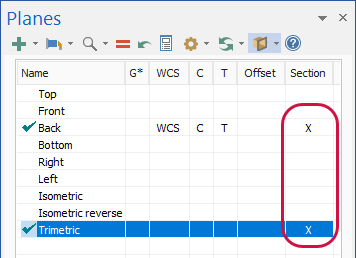
When Section View is toggled off, the section view in the graphics window will no longer display, but the X will still be displayed in the Section column. If Section View is toggled on, select the X in the Section column to remove that section view if you no longer need it.
How do I create a section view when creating a new plane?
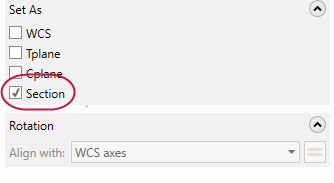
You can create a section view when creating a new plane in the New Plane function panel. Section View must be toggled on to be live during plane creation and editing. Select Section under Set As to set the new plane as the section view.
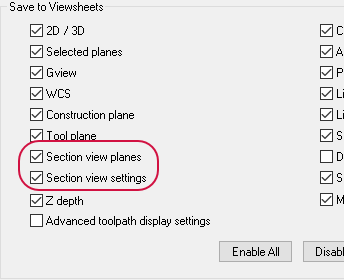
Can I save a section view in a viewsheet?
A plane's section view state can also be saved as part of a viewsheet. This option is set in the Viewsheets page of the System Configuration dialog box. When this option is selected, the section state for each new plane is saved within the viewsheet.