File Management Overview
Mastercam allows you to import, export, convert, compress, and work in many other ways with your files. Depending on your project goals, you may wish to use Mastercam functions to:
- Prep files for use across different programs.
- Transfer reusable content between files.
- Convert your files to the latest Mastercam version.
- Make compressed file packages that compile part data and settings.
Use this section to learn more about effectively managing your files in Mastercam. For information about Mastercam file extensions, see Mastercam File Extensions.
Importing and Exporting
You can use Mastercam to work with other files and their parts, such as planes, toolpaths, and geometry. You can also use file translators to import and export part files between programs, such as those that support native CAD formats, solid modeling kernel formats, and standard formats. Visit Mastercam's website for more about file translators. Contact Mastercam for information on the options available for your Mastercam configuration.
 Importing/exporting different file types
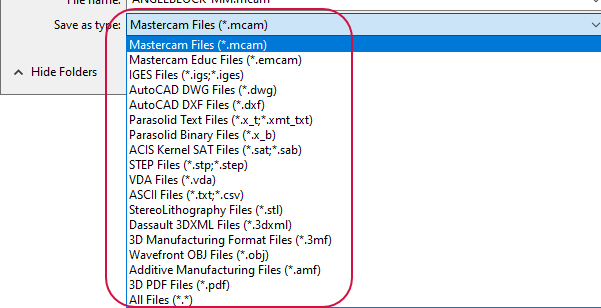
Mastercam file translators offer the ability to read (import) a variety of CAD file types into the Mastercam database. You can also write (export) Mastercam files to a variety of different file formats.
The Converters property page of the System Configuration dialog box (File, Configuration, and select the Converters page) lets you select default parameters for several file formats. You can also override these parameters when you convert files by choosing Options in the Open dialog box.
To export as an AutoCAD file with blocks, use Mastercam groups to define each block.
Select Open or Save As from the File tab. Be sure to select the file type you wish to import or export from the drop-down menu of the Open or Save As dialog box.
Importing/exporting select items between files
You can find the import/export option for select items, such as geometry and toolpaths, in the right-click menu of Toolpaths Manager.
Use the Import Toolpath Operations dialog box to import saved toolpath operations to the current Mastercam file, with or without their geometry. Import these operations from a previously created operations library or another Mastercam file of the same version.
Use the Export Toolpath Operations dialog box to export operations from the current Mastercam file to an operations library. Export these operations with or without their geometry. You can also automatically check for and exclude duplicate tools from the exported operations.

For more information, see Import Toolpath Operations dialog box and Export Toolpath Operations dialog box
Updating Files to the Current Version of Mastercam
When you upgrade to the current version of Mastercam, you can update your files and libraries before using them. The following file types should be updated:
- Part files
- Material libraries (.mcam-materials)
- Toolpath defaults files (.mcam-defaults)
- Operation libraries (.mcam-operations)
- Machine definitions and component libraries (.mcam-mmd, .mcam-lmd, .mcam-rmd, .mcam-wmd, .mcam-gmd)
- Control definitions (.mcam-control)
- Custom machine simulation files (.STL, .GIF, .BMP)
- Posts (.pst, .psb, .mcpost, mcbpost)
Users who are upgrading to a minor version within the same major release—for example, an update or service pack—typically do not need to convert their files.
There are several ways to update your files and libraries:
Converting files in a batch
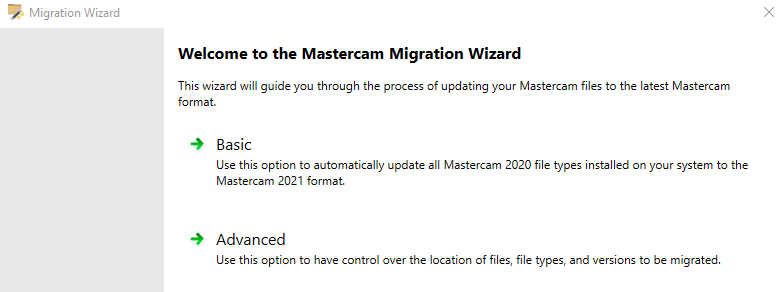
Use the Migration Wizard function to convert an entire folder of files. For example, you can convert all of your tool libraries or part file folders in a single operation. Mastercam provides the option to select a destination folder different from your source folder so that your original files are not overwritten. Using the same folder for the source and destination causes Mastercam to make backup copies of the source files.
Select Migration Wizard from the Convert option in the File tab. Follow the prompts in the Migration Wizard dialog box.
For more information, refer to the Migration Wizard Help topic.
Converting part files
To convert a single Mastercam part file, open the part in the current version of Mastercam. A notification will appear above the graphics window indicating that the current file is from a previous version of Mastercam. If you save the part file, it will be saved in format of the current version.
If you save the part file, it will no longer be compatible with older versions of Mastercam.
Converting posts
As an alternative to the Migration Wizard, you can use the UpdatePost Add-In to update your posts. However, this Add-In updates only the post, not the machine or control definition. To update your machine or control definition, follow one of the procedures described above. For more information, refer to the UpdatePost Add-In Help topic.
Set the default parameters for file formats in the Converters page of the System Configuration (File, System Configuration) dialog box. Learn more in Converters page: System Configuration.
Merging Files
Merge can be used to import and merge entities from an existing part file into the current file. This is especially useful when you have a part file that you use repeatedly. After selecting Merge from the File tab, you choose the file to merge and make selections regarding position, level, and settings. Learn more in Merge Pattern panel.
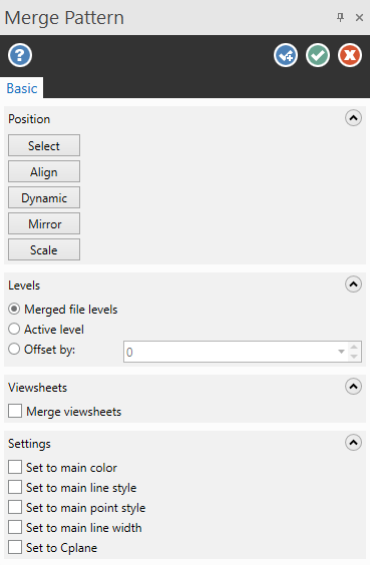
If you merge files with different system units, such as a metric and U.S. file, you will get a dialog box with options on how to proceed. See File-Merge dialog box to learn more.
Recognizing Changes to Files
Use the Change Recognition feature to compare two versions of a part file. This is helpful when working with iterations of part files, and can be customized to isolate specific changes to the file. Select Info from the File tab and select Change Recognition to use this function. For more information, see Change Recognition dialog box.
Compressing Files
To make files smaller while automatically including relevant part data, use the Zip2Go Wizard. You can select which data is included in the file package, such as configuration files, tool libraries, and toolpath files. This function can be found in the File tab. For more information, see Zip2Go Wizard.


