Dynamic Chaining
Mastercam can help you eliminate wasted toolpath moves ("cutting air") by allowing you to dynamically adjust the start and end points of chains.
When you click to create a dynamic chain, the green arrow and red arrows that display along the part's geometry represent the chain's start and end points .

By adjusting one or both of these chain points, you can dramatically increase your cutting efficiency.
- Use the Start point Forward/Start point Back and End point Forward/End point Back buttons to move the start and end points of a chain from one entity endpoint to another.
-
Use the Dynamic button to move the start or end of a selected chain to any position along an entity, without restricting the start/end to an entity endpoint. Click the Dynamic button, and then drag either chain arrow to a new position.

- After you place an arrow, click the mouse or press [Enter] to return to the dialog box. Press [Esc] to return to the dialog box and return the arrow back to its original location.
-
You can set the start or endpoint of a chain by clicking an Autocursor point that is outside of your chain. The arrow remains perpendicular to your cursor even when you hover over unchained geometry. Cursor snap points make it easy to align start and endpoints with existing geometry.
-
The End point buttons and the endpoint arrow are not available when you highlight a closed chain.
-
The start or endpoint arrow must be on the desired branch or edge when you select an Autocursor point.
- The Dynamic button is not available in the Wire product.
- Start and End are unavailable if Break closest entity to thread point in the Chaining Options dialog box is selected.
- If Break entities in dynamic is selected in the Chaining Options dialog box or Chaining property page, using this function automatically breaks the entity at the start/end position.
 See an example
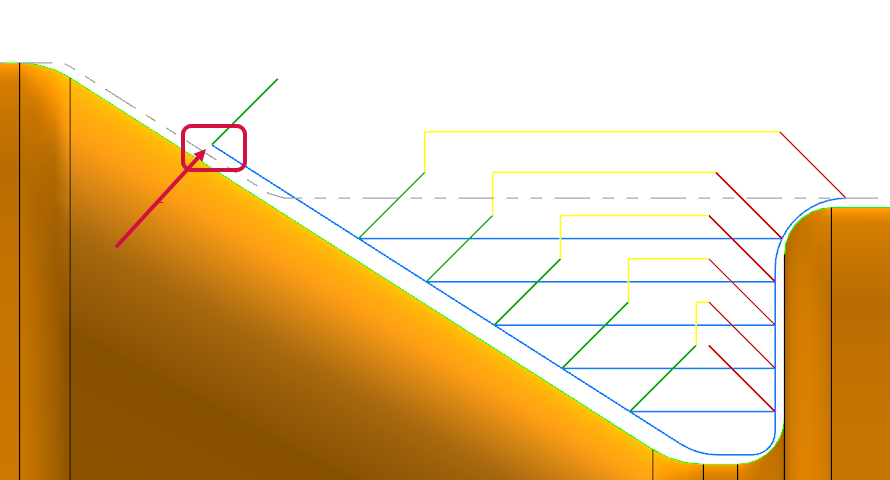
The following example shows a sample part after a roughing operation without dynamically moving the chain for the next back turn operation. Notice the wasted cutting movement on the approach.

By dynamically adjusting the chain to move the start point for the back turn operation, you can eliminate the "cutting air" portion of the toolpath.

This image shows the operation after using dynamic chaining to adjust the start point.
Modify an existing toolpath with dynamic chaining
You can also use Mastercam's dynamic chaining feature after the toolpath has been created. Click Geometry for the toolpath to open the Chain Manager.

In the Chain Manager, right-click the chain to edit, and choose Start point to use the options in the Chaining dialog box. Selecting Start point on an open chain enables the Start, End, and Dynamic buttons.


