Chaining Overview
Chaining is the process of selecting and linking pieces of geometry so that they form the foundation of a toolpath, surface, or solid. When you chain geometry, you select one or more sets of curves (lines, arcs, and splines) that have adjoining endpoints. Chaining differs from other selection methods because it associates order and direction to the selected curves. Chaining order and direction affect the way Mastercam generates surfaces, solids, and toolpaths.
Chaining selects entities in a specific order in preparation for a function such as toolpath or surface creation. For example, when creating a contour toolpath, you chain the entities that form the part that you want to machine. Unchained entities will not be included in the toolpath.
Most toolpaths require geometry to be chained. Usually you chain the geometry that is used in a single operation, such as a contour toolpath or pocket toolpath. You can also chain together separate sets of entities to be cut in a single operation. For example, you can chain together the entities for separate parts to be cut from the same workpiece in the same operation.
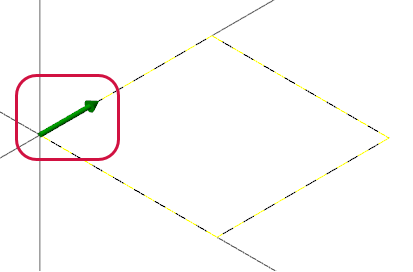
Chaining determines the direction of tool travel during machining. When you click on the entity or entities to select an entry point for the chain, notice the dynamic chaining arrow (example shown below). This arrow indicates the chaining direction, and therefore the direction of the tool.
 Understanding
chaining direction
Understanding
chaining direction
All chains have a direction. Direction for closed chains is either clockwise or counterclockwise, while the direction for open chains points toward one of the chain endpoints. The chaining direction determines the direction of tool movement in a toolpath.
In surface creation, Mastercam uses chaining direction to synchronize the chains to create a smooth, regular surface. Errors in establishing chaining direction often result in a twisted surface that cannot be machined.
The arrow in the following graphic shows the counterclockwise chaining direction for a closed chain. The chain starts at the base point of the arrow. The green arrow head indicates the direction the chain is moving.
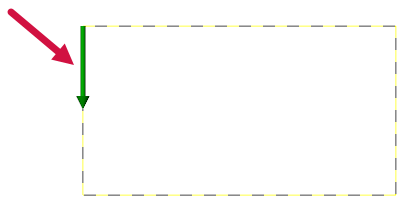
Mastercam determines chaining direction differently for open chains than closed chains. In an open chain, the start point is placed at the end of the chain closest to the selection point and the chain direction points to the opposite end of the chain.
Reversing
chain direction
-
To change the chaining direction immediately after you have clicked the entity, use Reverse on the Chaining dialog box.

-
To change the direction of a chain that has already been established in a toolpath, click Geometry for the toolpath to open the Chain Manager.

-
Double-click the direction arrow of the chain in the graphic window, or right-click a chain from the list and choose Reverse. Note that the right-click menu offers other chain-editing functions.

Changing the
side of the chain
To swap the cutter compensation for a selected chain in an operation from one side to the other, click Geometry for the toolpath to open the Chain Manager.
Then, double-click the chain's side arrow (the smaller arrow perpendicular to the direction arrow), or right-click a chain from the list and choose Change side from the menu.
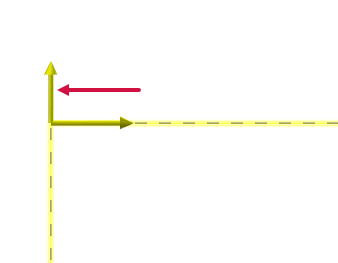
Cutter compensation refers to the tool offset from the toolpath: right or left. This option has no effect on pocket toolpaths, or toolpaths that do not use cutter compensation.
Many surface and solid creation methods require geometry to be chained. Chaining identifies the geometry that makes up the surface sections or boundaries. Chaining is also used to define entities for several Analyze and Create functions and is an efficient method for entity selection even when a specific order is not required.
Comparing
open and closed chains
Chains are open or closed. In an open chain the start and endpoints are different coordinates. Examples of open chains are single lines or arcs. An open chain may consist of a single entity or several contiguous entities. Partial chaining is a method of selecting entities as open chains.
In a closed chain the start and endpoints share the same coordinates. Closed chains typically consist of several entities that have adjacent endpoints and that form a closed boundary. Examples of closed chains are rectangles or circles.
Open:

Closed:

Understanding
chaining order
Some chain-based Mastercam functions produce unexpected results if the entities are chained in an order that prevents chain synchronization. Examples of these functions are loft, net, ruled, and swept surfaces. Net surface chaining, for instance, requires separate curves to define along and across edges.
When chaining for toolpaths, order is important to minimize rapid moves. You can check rapid moves with Mastercam Simulator. Use the Chain Manager in the Toolpaths Manager to re-order the chains in a toolpath operation.
Other functions that use chaining do not require entities to be chained in any particular order. Examples of these functions include the Transform commands: Rotate and Mirror, and the Delete command. In these cases, chaining is a selection method and order is irrelevant.
Tips for chaining
- To quickly pre-select a chain of entities, hold down the [Shift] key, and click on a boundary.
- Use Partial chaining to create open chains. Click the first entity for a chain, and then click the last entity in the chain. You can also click Apply or press [E] to end the chain and remain in the Chain function.
- If the chain stops unexpectedly, choose Chain from the Analyze group of the Home tab to check for overlapping entities. You can then use Modify functions of the Wireframe tab to trim adjacent entities together in order to chain them.
- To reselect the previous chained entities, for example, when correcting a surface that generated
Mastercam provides several chaining methods in the Chaining dialog box as well as settings, which affect how these chaining methods work, that you can choose in the Chaining options dialog box. As you chain geometry, Mastercam highlights the entities in the same color as selected entities. You can change the select color using the Colors property page in the System Configuration dialog box (choose Configuration on the File tab).
- Mastercam Lathe defaults to partial chaining, which provides more control for accurate chaining.
- Mastercam offers a dynamic chaining feature to help you eliminate wasted toolpath moves.


