Check Mesh panel
Use the Check Mesh panel to identify four types of error conditions in mesh entities. After starting the function, select a mesh in the graphics window. Mastercam displays the issues in the Results list and marks each error with the entity types in parentheses.
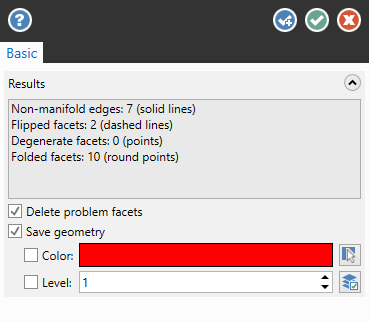
Save geometry is selected by default and saves the results to the active level. If Level is selected, the results are instead saved to the level number shown. Use the Color option to change the color of the resulting geometry.
Run Check Mesh before using any of the Modify functions on the Mesh tab to ensure your mesh is error-free. If it is not and you attempt to use one of those functions, Mastercam reports an error and you cannot continue until the mesh is fixed.
For more information, see Fixing Mesh Errors.
 What are the four types of errors Check Mesh can find?
Check Mesh searches for and reports on the following types of errors:
Non-manifold edges indicates that there are edges shared by more than two facets, resulting in identical edges on top of each other. Non-manifold geometry cannot be unfolded into a continuous flat piece, causing problems when machining.
| Correct | Incorrect |
|---|---|

|

|
If Check Mesh discovers a non-manifold edge, Mastercam marks the bad edge with a solid line.

Flipped facets indicates that the mesh normals are not aligned. The normals must be consistent across the mesh for Mastercam to calculate it properly.
| Correct | Incorrect |
|---|---|

|

|
If Check Mesh discovers flipped facets, Mastercam marks the unaligned facets with a dashed lines.

Degenerate facets indicates that there are facets that contain no geometric area, have shared vertices, no plane, and no normal. No computations can be done on a degenerate facet.
| Correct | Incorrect |
|---|---|

|

|
If Check Mesh discovers a degenerate facet, Mastercam marks the facet with the star-style point indicator.

Folded facets indicates areas where a neighboring node is pulled over an existing facet, creating a crease which has no geometric meaning.
| Correct | Incorrect |
|---|---|

|

|
If Check Mesh discovers a folded facet, Mastercam marks the bad facet with a round-style point indicator.

How do I fix the errors Check Mesh found?
Method 1: Delete problem facets
If Check Mesh detects errors, you can select the Delete problem facets option to eliminate all facets identified with those errors. In many cases, this is all you need to do to generate a usable mesh model.
Method 2: Modify facets
If Check Mesh detects Non-manifold edges, Degenerate facets, or Folded facets, use the Modify Mesh Facets panel function on the Mesh tab to modify a mesh at the facet level by creating or removing individual mesh facets. When the mesh is repaired, use the functions in the Modify group of the Mesh tab to further refine the mesh. This includes:
Method 3: Correct normals
If Check Mesh detects Flipped facets, use the Change Normal or Orient Normals functions on the Surfaces tab to view and reverse the normals. Change Normal reverses the normal of a single face. Orient Normals re-orients all matching faces to the direction of the normal in the last selected face.
For more detailed steps of fixing meshes, refer to the Fixing Mesh Errors Help topic.
After you fixed the found errors, it is good practice to run Check Mesh again.


