Primitive Cylinder panel
Use the Primitive Cylinder function to create a cylinder primitive as a solid, mesh, or surface model. This function also displays when you create a cylindrical Safety Zone for Multiaxis toolpaths. Mastercam creates a point in the center of the first arc you define for the cylinder. This point can be useful for editing the solid entity.
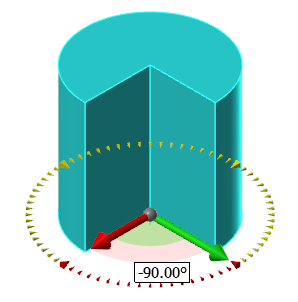
Click and drag the on-screen sweep angle control arrows to adjust the Start and/or End of the Sweep Angle. After creating the cylinder shape, you can click a face to display the sizing arrow. Click and drag the arrow to resize the cylinder. Repeat as necessary on other faces. The dimension fields in the Primitive Cylinder function panel update with the current sizes.
 How do I create tangent cylinders?
Use the Tangent options (located in the Base Point Definition area of the Primitive Cylinder panel) to draw tangent cylinders without creating additional construction geometry. For example, you can create a cylinder that is tangent to three edges by simply selecting the edges in the graphics window and setting the cylinder's height. Mastercam determines the appropriate center point, as shown in the following pictures.
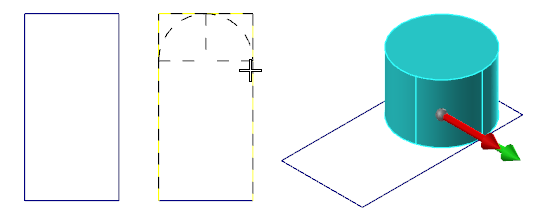
The options for creating tangent cylinders are Center point, Two edges, Three edges, Endpoints, and Geometry.
Guidelines for creating tangent arcs
Mastercam provides many ways of creating arcs and cylinders tangent to entities. Use the following guidelines and rules when creating arcs and cylinders tangent to entities:
-
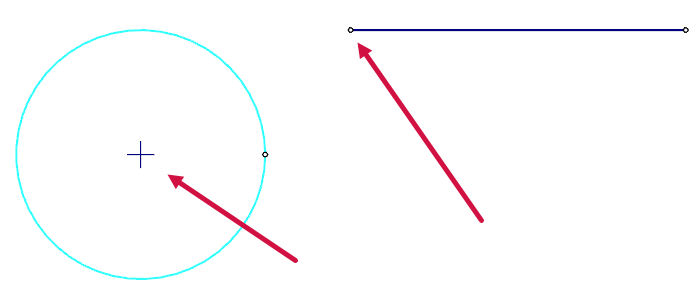
You can create arcs on an extended portion of the selected geometry. The red arrows indicate the center point and the line it is tangent to.
-
When you create a circle tangent to two curves, the radius of the circle must be greater than or equal to half the distance between the closest points on the two curves.

-
When you create an arc tangent to a line or arc with a defined edge point, the radius of the arc must be greater than or equal to half the distance between the selected entity and point at the closest pass between them.

How do I use the Push-Pull options on the Advanced tab?
The Push-Pull options on the Advanced tab of the Block, Cylinder, or Bounding Box function panel allow you to extend the shape of the geometry by using the control arrow and ruler in the graphics window. The Absolute and Incremental options set the push-pull scale.
Absolute sets the push-pull scale to measure from the face opposite of the selected face. For example, you can create a 2-inch block from 0.175-inch block by dragging the ruler 2 inches. You can also type the value and press [Enter] to place the ruler.

Incremental sets the push-pull scale to measure from the current location of the selected face. For example, you can make 2-inch block 1.2 inches taller by dragging the ruler 1.2 inches. You can also type the value and press [Enter] to place the ruler.

While in Push-Pull mode, you can do the following:
-
Press [Enter] to finish resizing.
-
Press [Esc] to undo resizing.
-
Select a new face as your base.


