Selecting Parameters for Download
In addition to providing visualizations of data, the STOQS UI may be used to construct requests for downloading data. During discussions around the MOOS/SSDS programs we referred to this as the "Get Data" button. Certainly, data can be read directly from the NetCDF files that have been loaded into STOQS, but with STOQS one does not need to know the file name and can simply query based on knowing the database name, spatial, temporal, platform, and parameter information.
-
Selecting the database:
- for Dorado data use https://stoqs.shore.mbari.org/stoqs_all_dorado
- for a specific Campaign choose that database, for example there are databases that have been made public for sharing with collaborators such as https://stoqs.mbari.org/stoqs_michigan2021 or https://stoqs.mbari.org/stoqs_ecohab_april2023
- for any LRAUV vehicle use the appropriate
stoqs_lrauv_<month><year>database on the https://tethysviz.shore.mbari.org server. For example, for makai in January 2026 use https://tethysviz.shore.mbari.org/stoqs_lrauv_jan2026. (Note that if a LRAUV deployment spans a month boundary that entire deployment will be included in both monthly STOQS databases.)
-
Selecting depth/temporal:
- Click and drag in the Temporal pane the depth and time range requested
-
Selecting Platform:
- Open the Platform section and click the button(s) for the Platform(s) requested
-
Selecting Parameter(s):
- Open the Measured Parameters section and click the buttons for the requested Parameters
Clicking Parameter buttons serves two functions:
- Filtering data for display in the UI
- Selecting the data for download
An example STOQS UI session with "ctdseabird_sea_water_salinity (psu)" and "ctdseabird_sea_water_temperature (degC)" selected for filtering and data access.
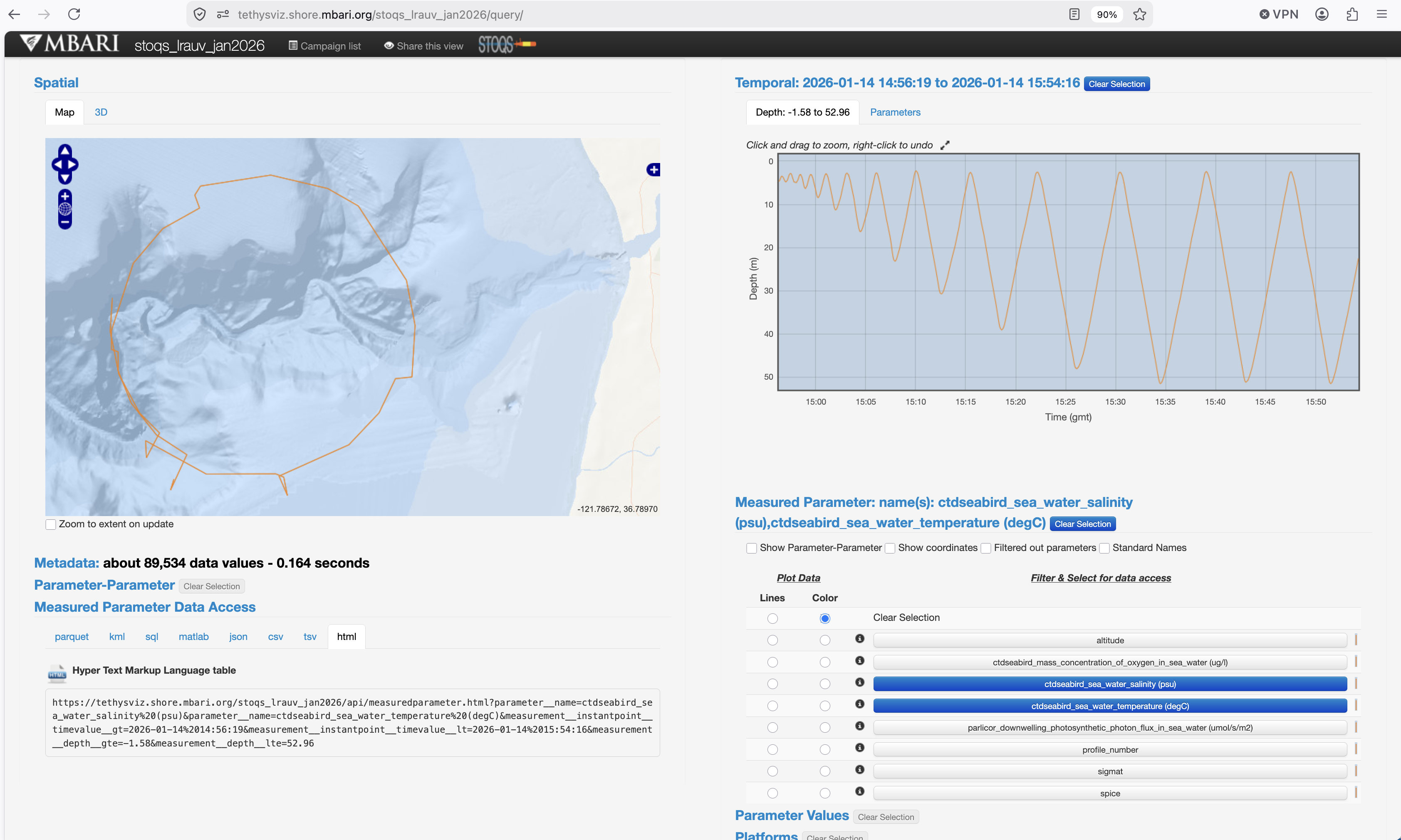
Screenshot showing an hour-long selection of Temperature and Salinity with the .html request for data access URL shown. Clicking on the icon to the left of the "Hyper Text Markup Language table" text will open the request in a new tab. This can be useful for examining numeric values if the request is small. Clicking on the URL selects it for copy into your clipboard.
The Measured Parameter Data Access request can be pasted where you need it and be modified programmatically as needed:
https://tethysviz.shore.mbari.org/stoqs_lrauv_jan2026/api/measuredparameter.html?parameter__name=ctdseabird_sea_water_salinity%20(psu)¶meter__name=ctdseabird_sea_water_temperature%20(degC)&measurement__instantpoint__timevalue__gt=2026-01-14%2014:56:19&measurement__instantpoint__timevalue__lt=2026-01-14%2015:54:16&measurement__depth__gte=-1.58&measurement__depth__lte=52.96
&measurement__depth__gte=-1.58&measurement__depth__lte=52.96 can be removed. The .html response format is useful examining numeric values, but only for small requests as generating the HTML table can take a while. To get an indication of how big the table will be open the Metadata section and check "Get actual count":
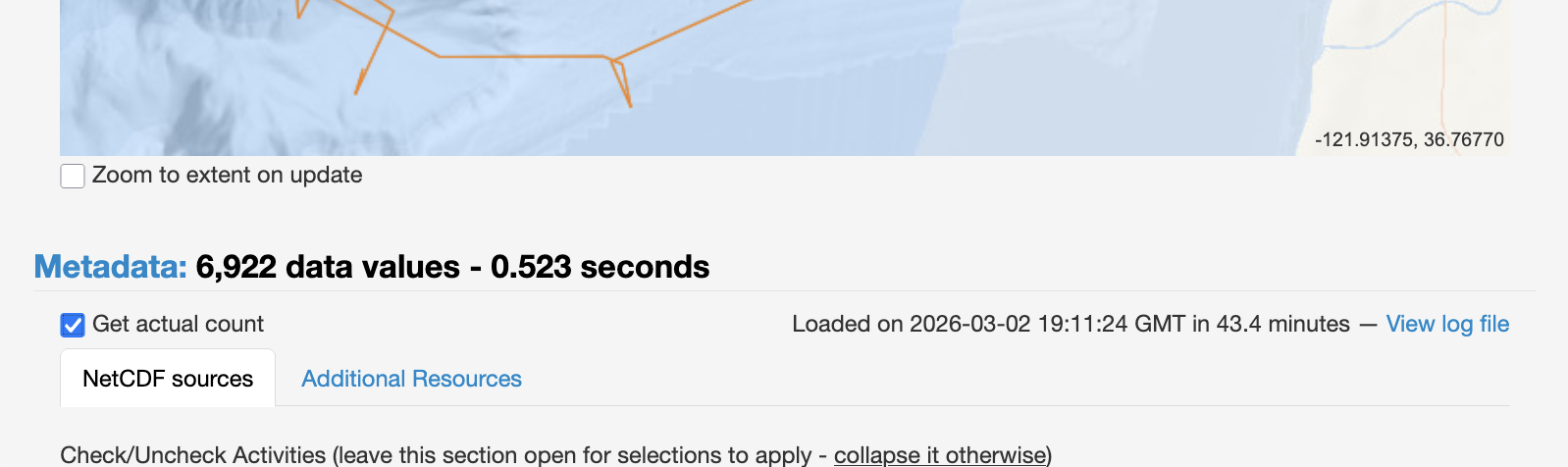
About a hundred or so data values are appropriate for HTML Table viewing.
The .csv, .json, or .tsv response formats are better for programmatic access. There are also .kml, .sql, and matlab access methods.
The preferred method to download a large amount of data in a better organized format is Apache Parquet, and that is now the default tab selected when you open the Measured Parameter Data Access section:
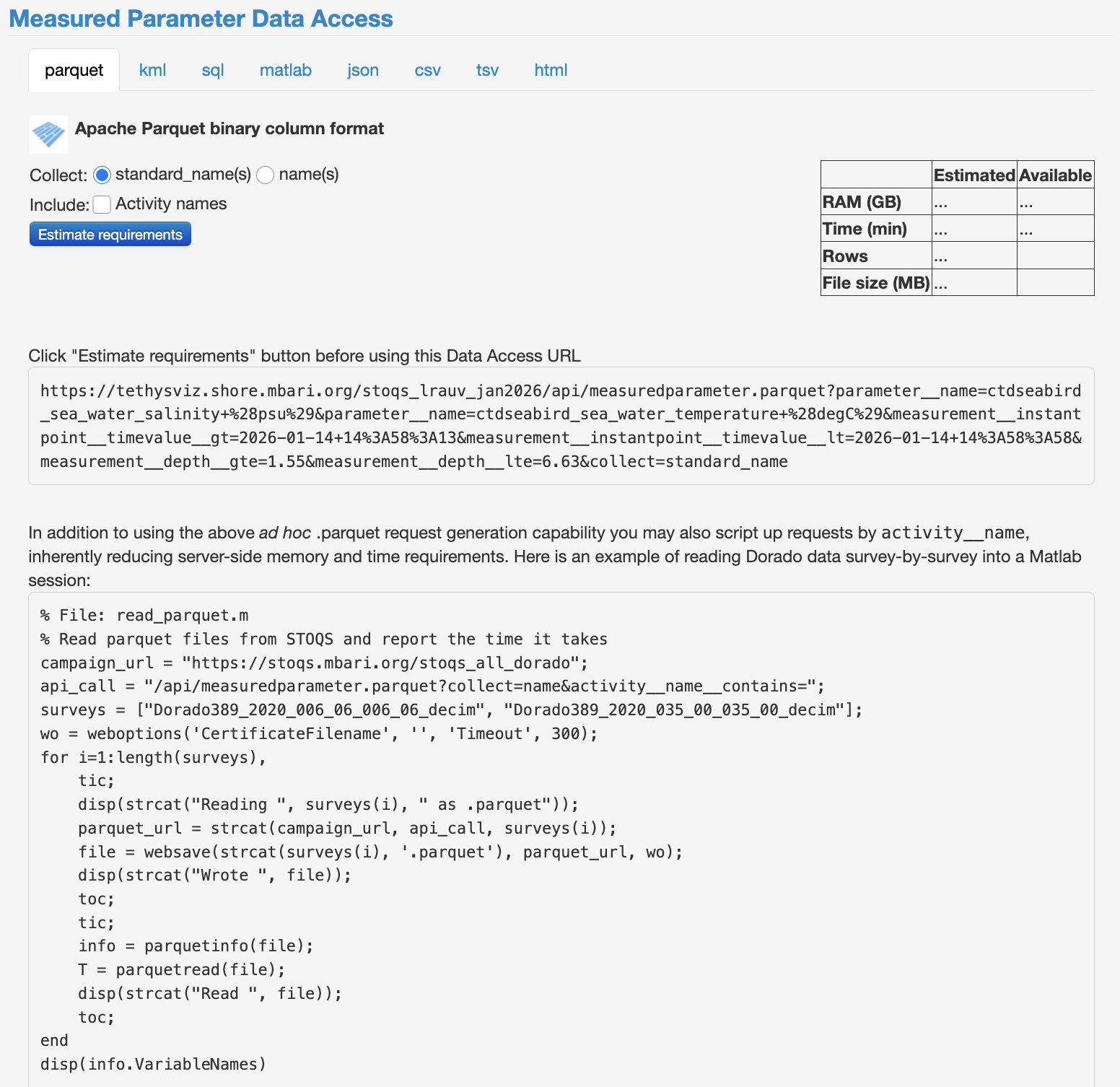
There are two options for the collect attribute: standard_name(s) and name(s). Use standard_name(s) if you'd like to collect common variables from multiple platforms or if you rather not deal with the peculiartites of the <instrument>_<variable> naming. This option depends on the standard_name attribute being assigned to variables in the NetCDF files and set to one of the CF standard_name values. Another useful feature of using standard_name(s) is that specific Measured Parameter selections can be omitted with only Temporal and Platform selections for simpler requests and responses:
The other option uses the actual variable name from the NetCDF file and is appropriate if whatever code using the Parquet output is okay with using these specific variable names, or if there is no standard_name assigned.
The "Activity names" checkbox is for adding a column for the STOQS activity name, which is usually composed of some form of the original NetCDF files that is the source of the data.
The "Estimate requirements" button is for computing the server-side resources needed for producing the Parquet output. A pivot-table operation is required following the SQL query of the database and depending on the size of the query significant server resources can be required. To make the estimate a small query is made using the selections made and then extrapolated to the entire query. This is a gross estimate, but should give an idea wheteher the request can be satisfied or not.
The Apache Parquet method is preferred as the data are kept in a binary form, much larger values can be handled, and the output can be directly loaded into Pandas or R Data frames in the Tidy format that is preferred for further analysis and machine learning needs.