Puck Scan Screens
On the Puck Scan Station only. Side menu → Puck Scan**
These screens read the tag in each recovered puck, print a label for it, and build a table of every puck in the deployment. For the step-by-step procedure, see Recover and Scan Pucks.
Puck Scan Station page
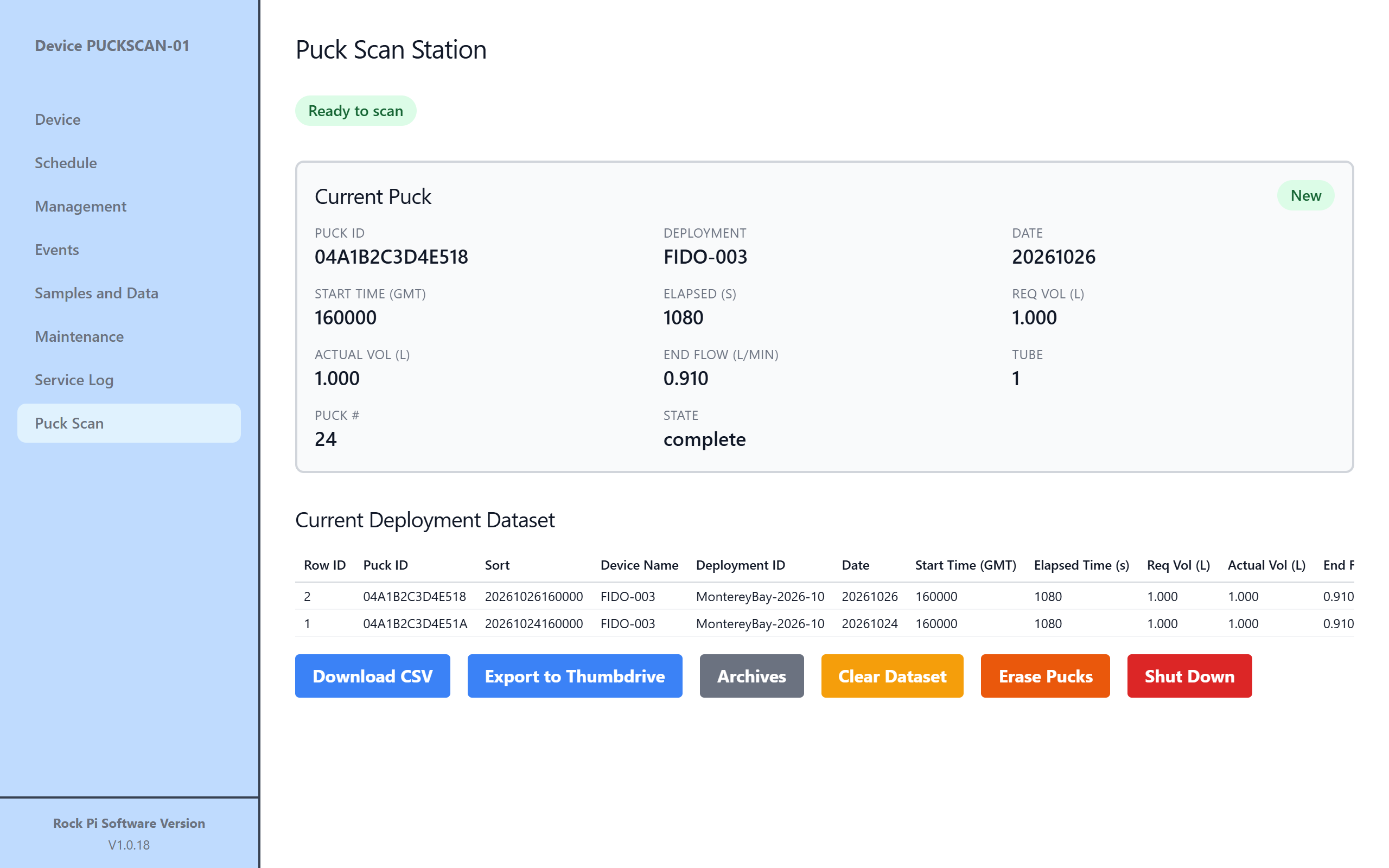
The badge under the title shows what the station is doing: Ready to scan, Scanning..., Printing label... or Remove puck to continue.
Messages at the top
- No recent heartbeat from puckscan
- The station's scanning software isn't running, often because the reader isn't plugged into the station.
- Erase mode is still on
- The next puck placed on the reader will be erased, not scanned. Click Stop Erasing, or Go to Erase Pucks.
- Puck N was already scanned
-
Choose Skip (do nothing), Print Only (reprint the label) or Save & Print (save it again).

- Puck N didn't scan as valid data
-
Nothing was saved or printed. Remove it and try again with a different puck, or re-write this one. Click OK.

Current Puck
The puck on the reader now: Puck ID, Deployment, Date, Start Time (GMT), Elapsed (s), Req Vol (L) (requested), Actual Vol (L), End Flow (L/min), Tube, Puck #, State and Notes.
Current Deployment Dataset
Every puck saved so far. Remove deletes a row.
| Button | What it does |
|---|---|
| Download CSV | Saves the table to your computer |
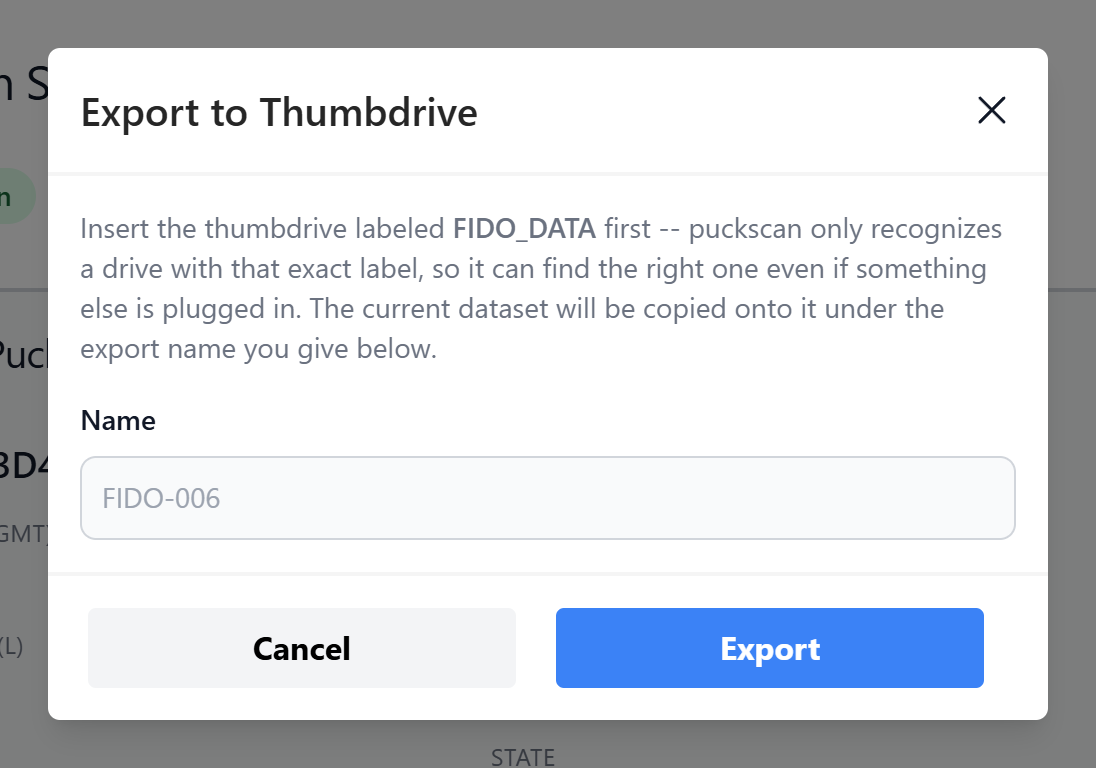
| Export to Thumbdrive | Copies the table to a thumbdrive plugged into the station. The drive must be labeled exactly FIDO_DATA. Enter a Name and click Export. |
| Archives | Opens the list of earlier datasets |
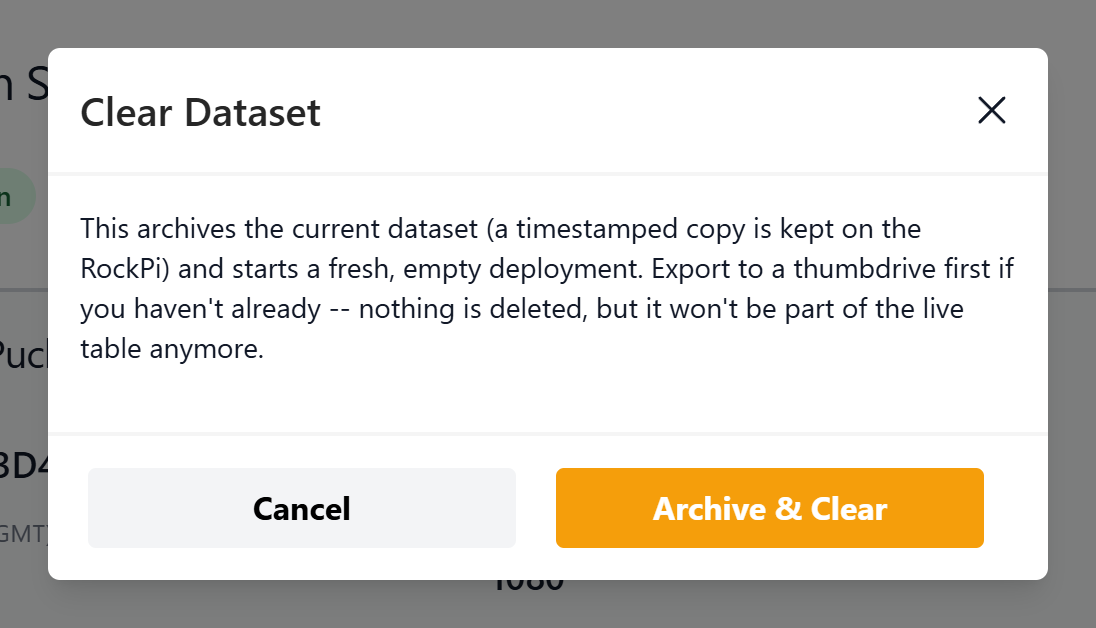
| Clear Dataset | Archives the current table and starts an empty one (Archive & Clear). Nothing is deleted. |
| Erase Pucks | Opens the Erase Pucks page |
| Shut Down | Powers off the station's controller. Finish any scan first. |
Archived Puck Scans
Puck Scan Station page → Archives**
A copy is kept here every time you use Clear Dataset. Each row shows Archived At and Size. Back to Puck Scan Station returns to the main page.
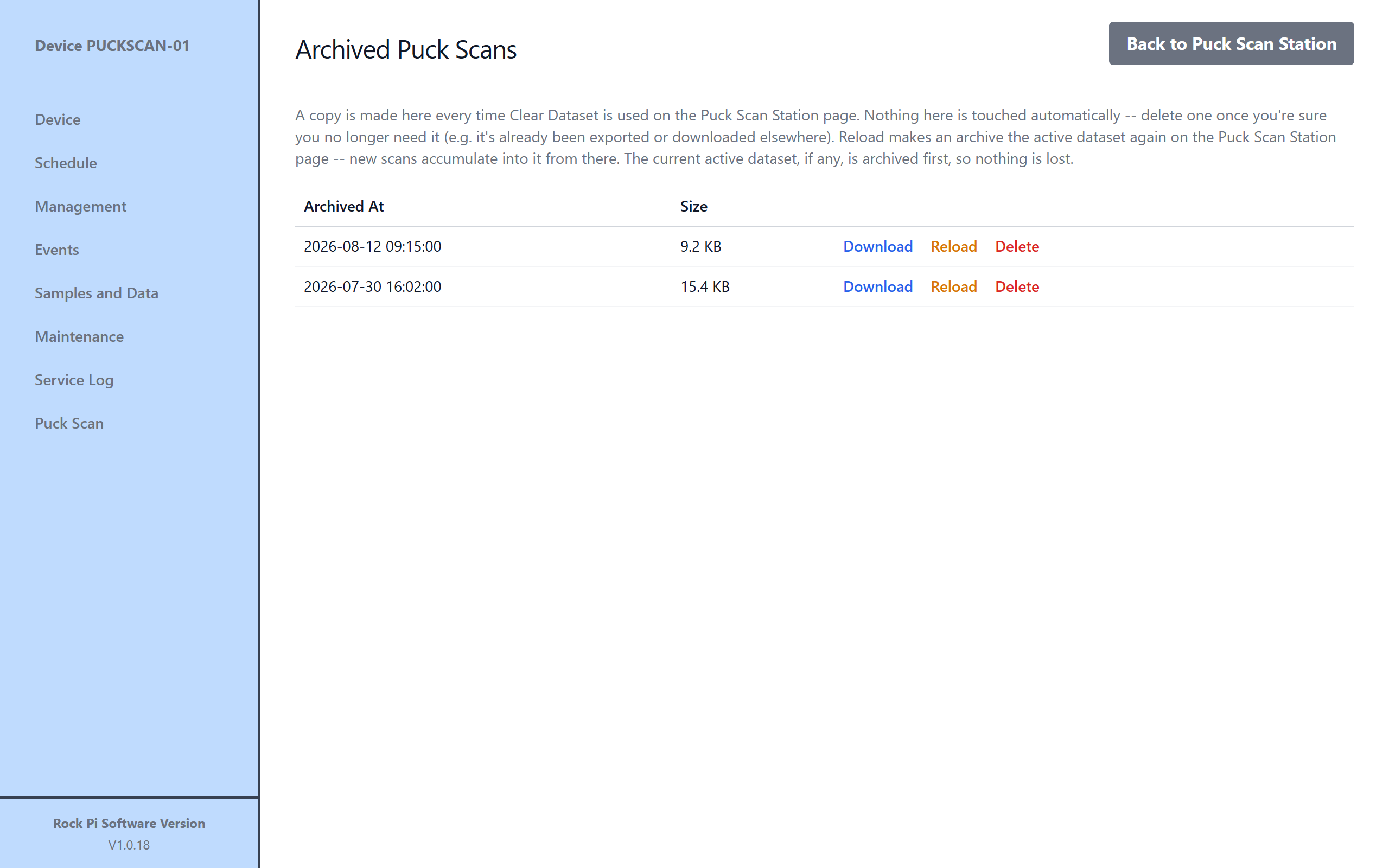
- Download saves that dataset.
- Reload makes it the current dataset again. The current one is archived first, so nothing is lost.
- Delete removes it permanently. Only do this once it has been saved somewhere else.
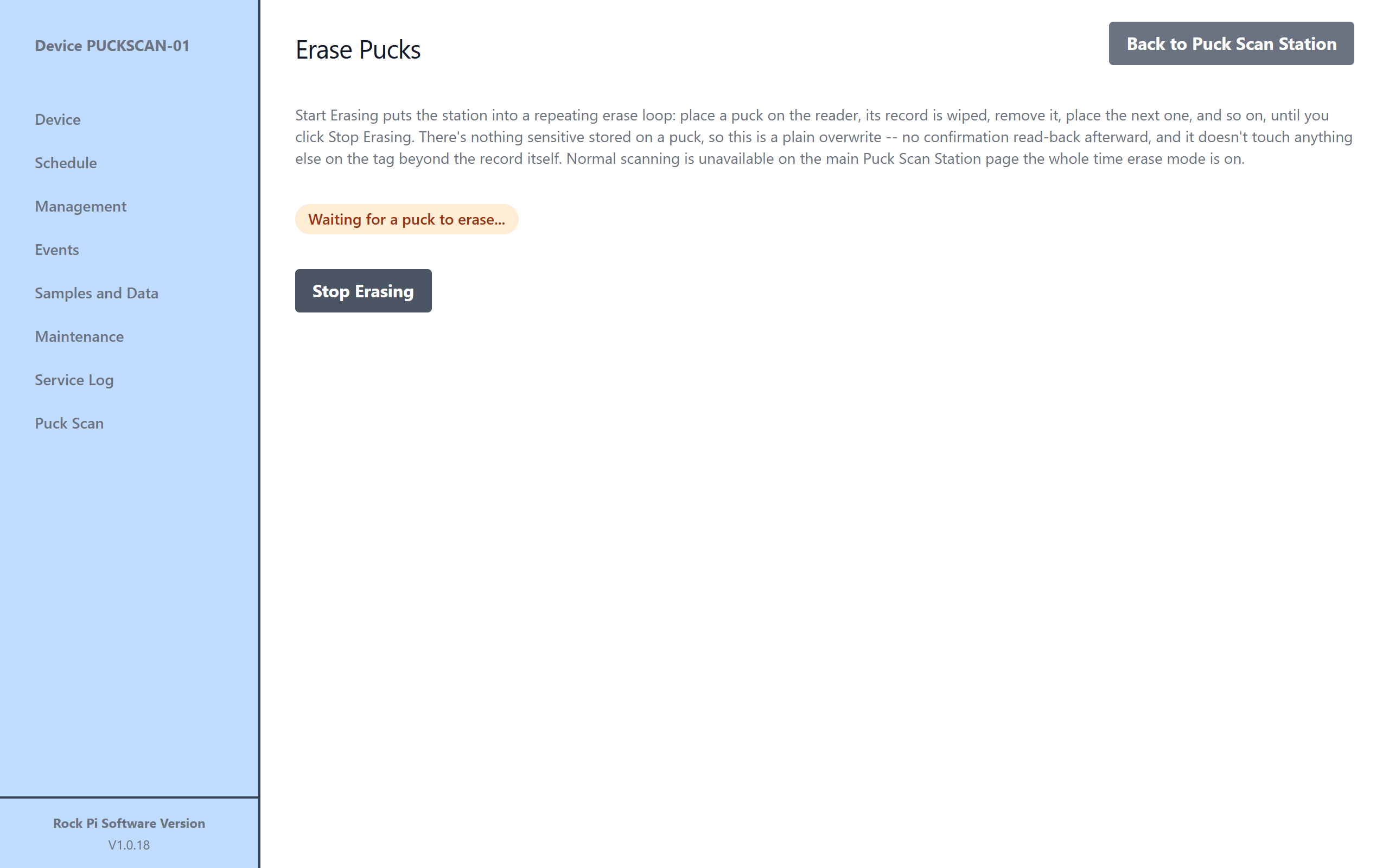
Erase Pucks
Wipes the record on pucks so they can be reused.
- Click Start Erasing.
- Place a puck on the reader. Its record is wiped. Remove it and place the next one.
- Click Stop Erasing when you're done.
While erase mode is on, the badge reads Waiting for a puck to erase... or Remove puck to continue.
Warning
Normal scanning doesn't work while erase mode is on. Make sure a puck's data has been saved before you erase it.