Take a Sample Now
Use this to take a single sample immediately, for example to test a new deployment or to sample during an event.
Warning
The sampler starts moving as soon as you confirm. Keep hands clear of the sampler and make sure the intake is in the water.
- Open the Management page.
- Under Sensor Actions, click Take Sample Now.
-
Check the details in the dialog:
- Deployment ID (shown if one is set). If it's wrong, cancel and fix it under Device Management first.
- Volume in liters. Pre-filled with the Default Volume. Change it if you need to (0.1 – 100 L).
- Note (required). A short description, for example
post-storm grab. Up to 40 characters. The counter helps you keep important information in the first 20, which is all that fits on a printed puck label.
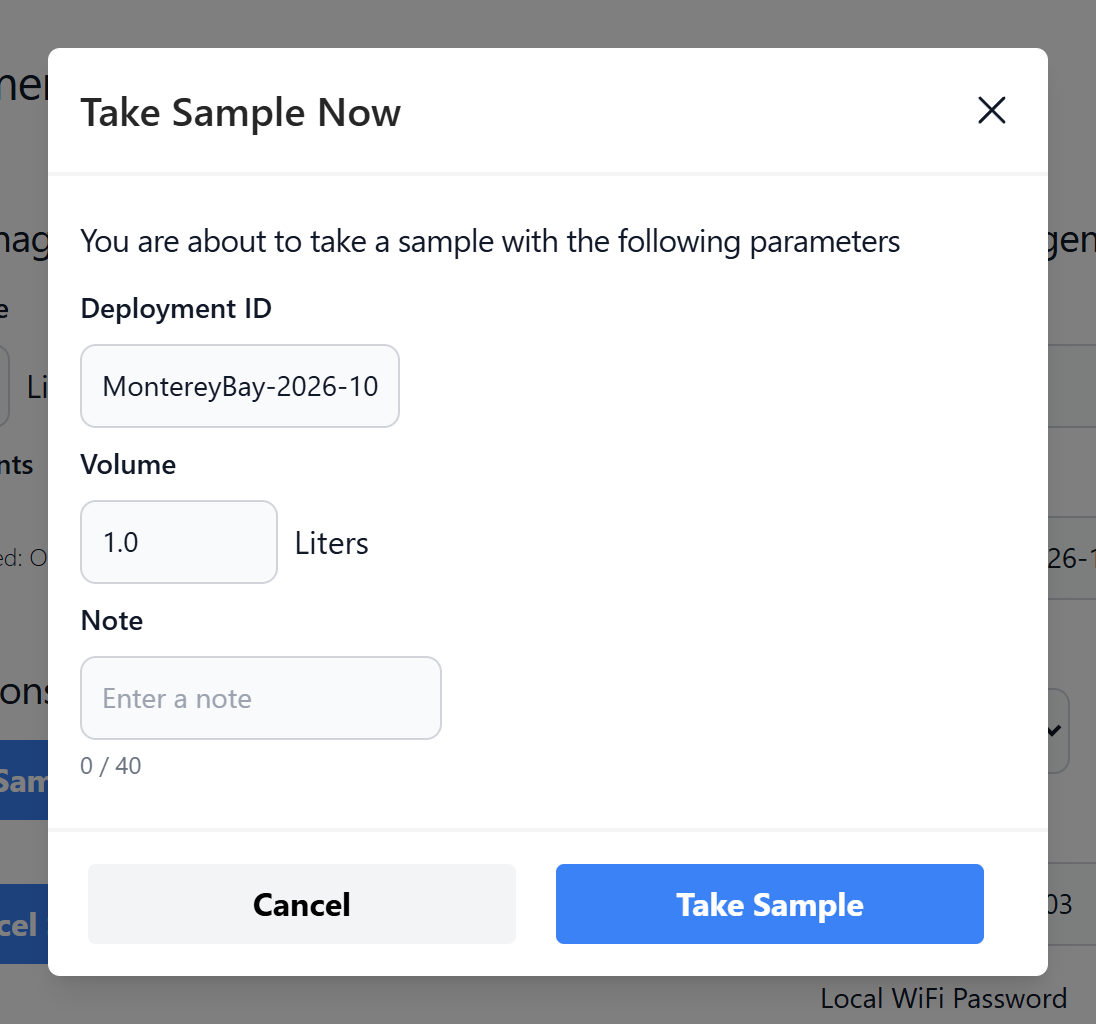 4. Click Take Sample.
Following progress
- The Events page shows each step as the sampler works.
- When the sample finishes, System Status on the Device page updates and Number of Stocked Pucks goes down by one.
To confirm
How long a typical sample takes, and whether a decontamination runs automatically after a manual sample.
Stopping a sample
- Truncate Sample ends it early and keeps what's been filtered.
- Cancel Sample stops the operation.
- Emergency Stop is only for when something is going physically wrong.