When Something Goes Wrong
Which button do I use?
| Situation | Use | What happens |
|---|---|---|
| Something is physically wrong: a leak, a strange noise, a person at risk | Emergency Stop | Everything stops at once and the hardware shuts down. The sample in progress is lost. |
| You want to end the current sample early but keep it | Truncate Sample | The sample is ended early and finished off. |
| You started the wrong operation | Cancel Sample | The current operation is cancelled. |
| After an Emergency Stop or an ERROR | Make Sampler Safe | The sampler is reset to a safe, known state ready for the next sample. |
Emergency Stop is the red button on the Device, Management and Maintenance pages. The others are under Sensor Actions on the Management page.
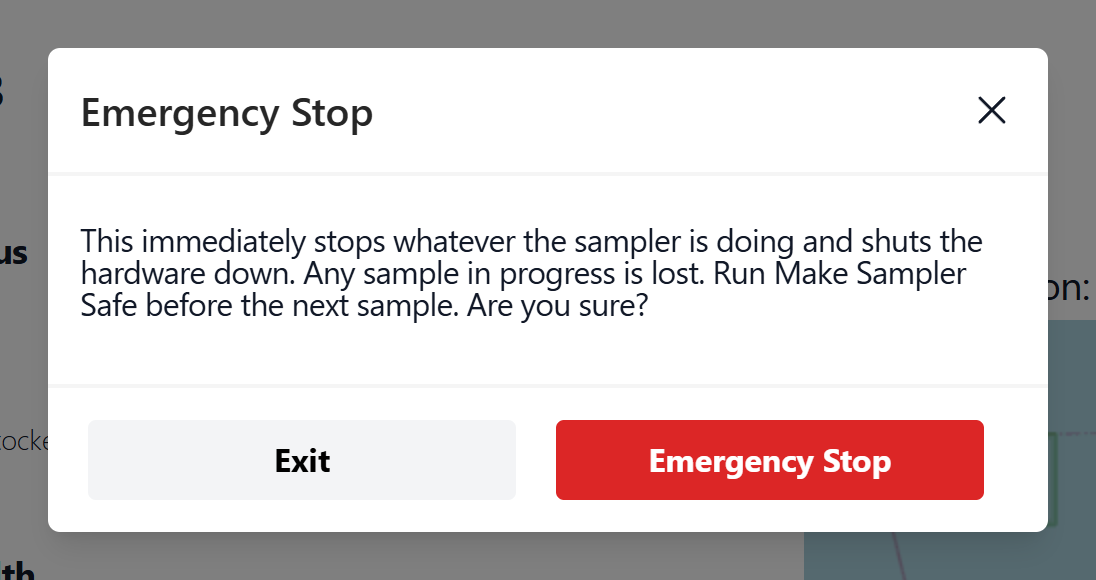
If anyone is at risk
Use Emergency Stop, then disconnect power at the enclosure. Don't rely on the web interface alone. It may be slow to respond.
Hardware — to be written
Where the physical power switch or disconnect is, and how to isolate the sampler safely.
Recovering from an Emergency Stop or ERROR
- Find out what happened. Open the Events page and look at the most recent entries.
- Fix the physical cause if there is one.
- On the Management page, click Make Sampler Safe and confirm with OK.
- Check that System Status on the Device page returns to green.
- Turn the schedule back on if you paused it.
- Add an entry to the Service Log describing what happened and what you did.
If Make Sampler Safe doesn't clear the error, contact your administrator. They may use the tools on the Maintenance page.
Shutting the controller down
Before you unplug power, shut the controller down cleanly:
- Make sure no sampler operation is running.
- On the local Management page, click Shut Down, then Shut Down again in the dialog.
Shut Down is only on the local interface. You can't power off a FIDO from the cloud.
See also Troubleshooting.