Maintenance
Side menu → Maintenance**
Tools for servicing and diagnosing the sampler. Most users won't need this page in normal operation. Use it when the procedures in this guide tell you to, or when an administrator or engineer asks you to.
Warning
Commands on this page act on the sampler directly, even while it's in the middle of something. Make sure you know what a command does before you send it.
The red Emergency Stop button is at the top of the page.
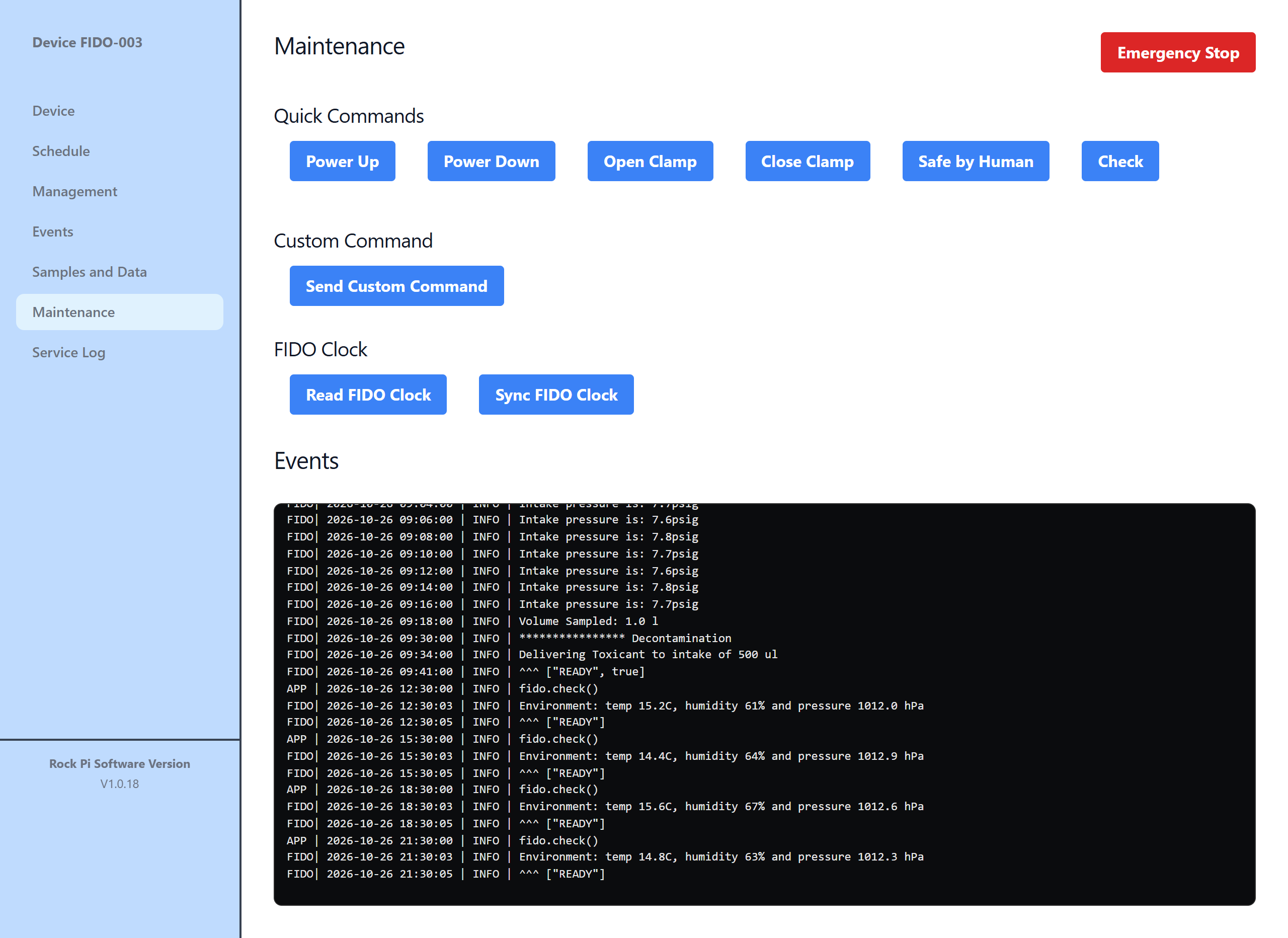
Quick Commands
One-click buttons for common service tasks. Most ask you to confirm first. The set of buttons is chosen by your administrator. A typical set:
| Button | What it does |
|---|---|
| Check | Runs the sampler's self check and reports the result in Events |
| Power Up / Power Down | Switches power to the sampler's motors and valves on or off |
| Open Clamp / Close Clamp | Opens or closes the puck clamp. Fingers clear! |
| Safe by Human | Clears errors after a person has checked the instrument is safe |
Open Clamp / Close Clamp
The clamp closes with enough force to injure. Keep fingers clear before you confirm.
Custom Command
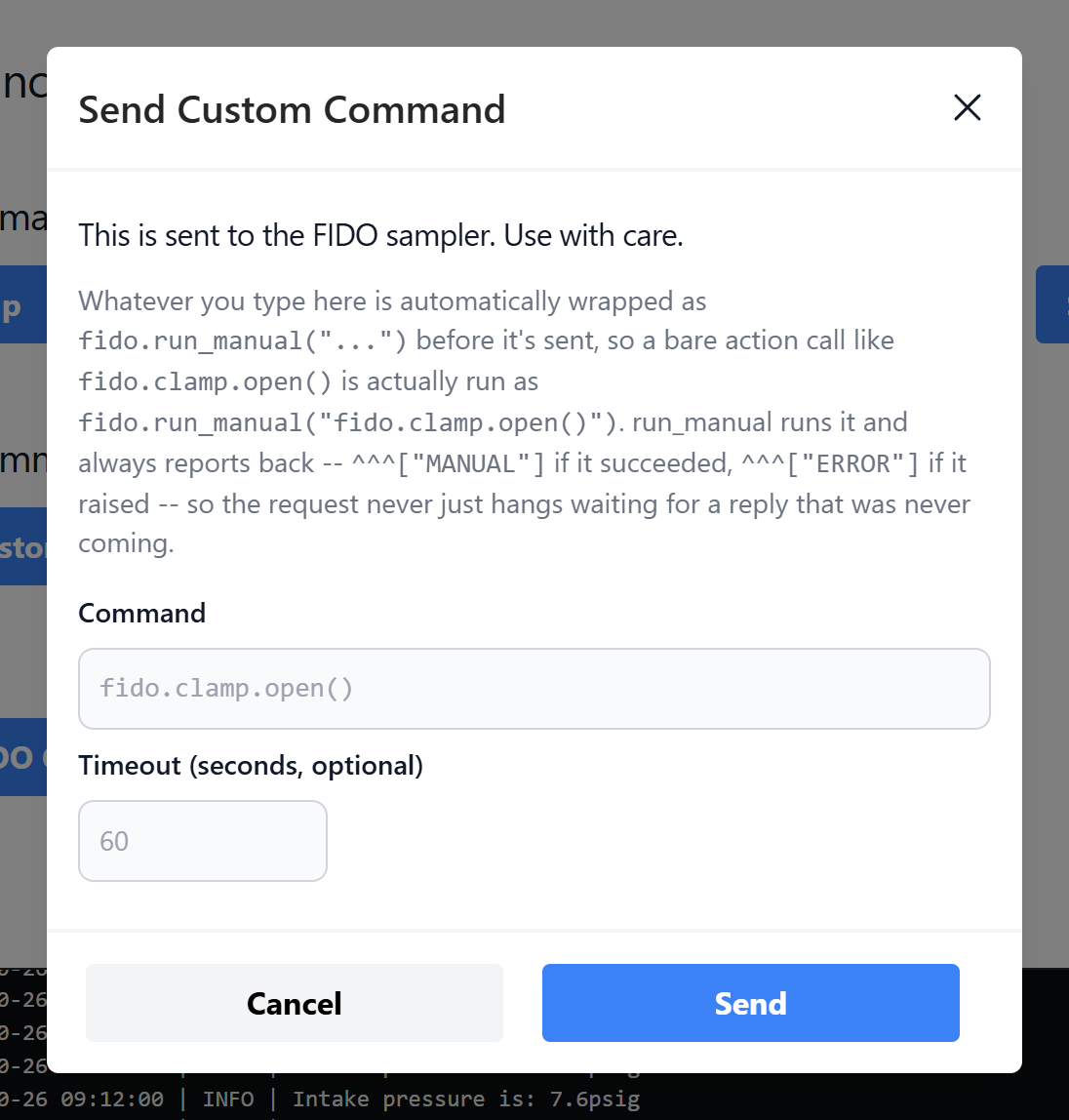
Send Custom Command sends a command you type directly to the sampler's firmware, for advanced troubleshooting. The commands available, and what they do, are documented for engineers and administrators, not in this guide.
Use it only when an engineer gives you the exact command to type. The result shows in the Events list below as MANUAL if the command succeeded or ERROR if it failed.
FIDO Clock
The sampler keeps its own clock, which it uses to time-stamp its records.
- Read FIDO Clock
- Shows the sampler's current clock in the Events list. Nothing moves.
- Sync FIDO Clock
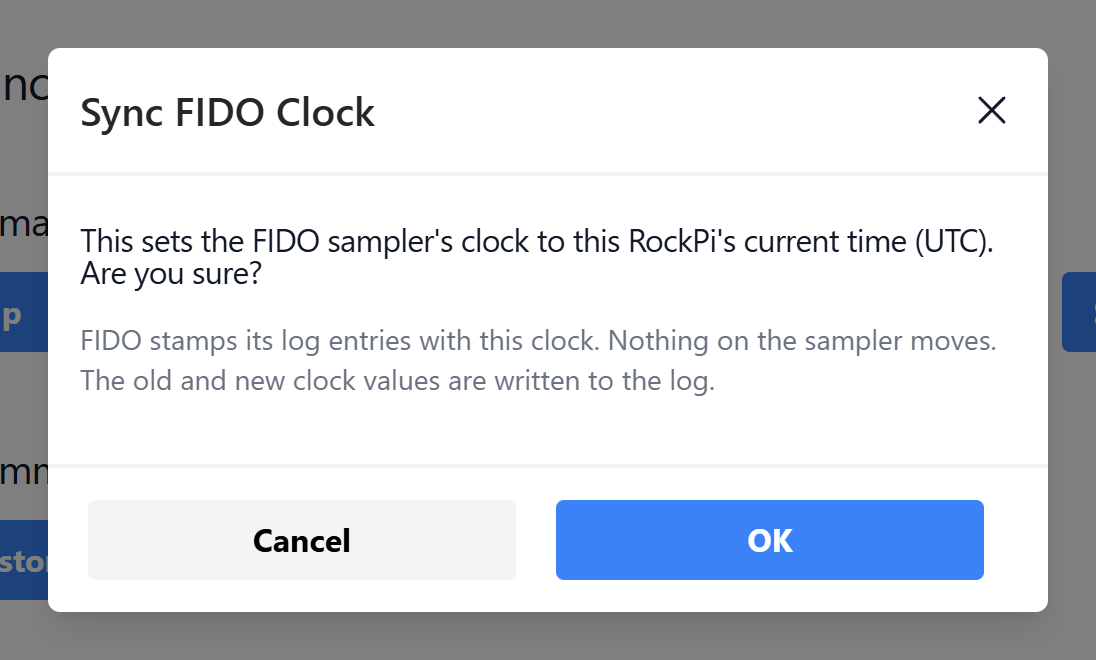
- Sets the sampler's clock to the controller's current time (UTC). Nothing on the sampler moves. The old and new times are written to the log. Use it if the sampler's times look wrong.
Events
The same log as the Events page, so you can watch the result of a command as you send it.